![OmniByte - PNG Black Logo Oct 2021 (1).png]](https://help.omnibyte.com/hs-fs/hubfs/OmniByte%20-%20PNG%20Black%20Logo%20Oct%202021%20(1).png?height=50&name=OmniByte%20-%20PNG%20Black%20Logo%20Oct%202021%20(1).png)
An Infor connection lets FormsPro securely connect to your organization's Infor CloudSuite environment. Once it is set up, you can use it in data sets to bring Infor data into your forms, and in data maps to send form submissions, media, and reports back to Infor.
Unlike most other connection types, an Infor connection needs a client ID, a client secret, token address, and a username and password. FormsPro uses all four to sign in to the Infor ION API Gateway on your behalf.
Before You BeginYour Infor administrator must complete these steps in Infor before you can create the connection:
- Register a Backend Service authorized app in the Infor ION API Gateway. This allows a system or application to access Infor APIs in the background without requiring user interaction.
- Assign a service account (username and password) to that app. The account needs access to the M3 programs (business functions and operations) and document types your forms will use.
- Download the app's credentials. They contain the client ID, client secret, service account details, and token address you need to create an Infor connection.
- From the Configuration menu, select Data Connections. The Data Connections page opens.
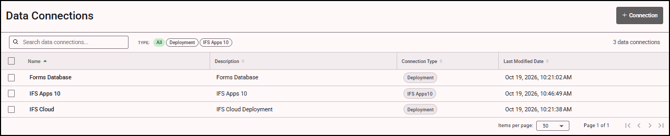
- Click + Connection to open the Add Connection tray.
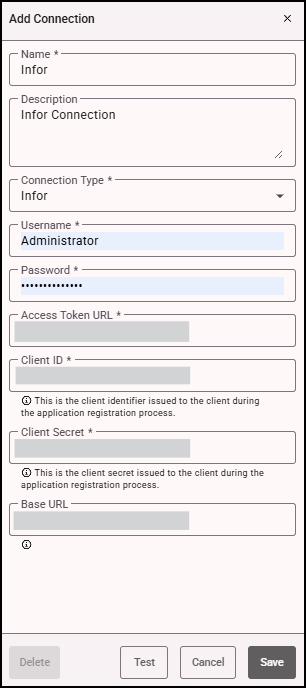
- Enter a Name and Description that identifies the Infor connection. The description is especially helpful if you connect to more than one Infor environment, such as test and production.
- Select Infor from the Connection Type field.
- Enter the username and password for your Infor service account. This is a dedicated account that you (or your administrator) have set up and configured within the Infor system specifically for this connection. Make sure the service account has the necessary permissions for the tasks your form or integration needs to perform.
- Enter the Infor token address from your app credentials in the Access Token URL field. FormsPro uses it to request an access token.
- Enter the client identifier that was issued to the client during the application registration process in the Client ID field.
- Enter the client secret that was issued to the client during the application registration process in the Client Secret field. The client secret acts as a password to authenticate the client application to the authorization server.
- Enter the root address of your Infor tenant in the Base URL field (optional). When a base URL is set, data sets and data maps that use this connection only need the rest of the address, such as /M3/m3api-rest/v2/execute/....
- Click Test to ensure your settings are correct.
- Click Save when you've completed your changes.
- If you have any issues, see Troubleshooting Data Connection Issues.
Note: The password and client secret are encrypted when you save. They appear masked when you open the connection later.