![OmniByte - PNG Black Logo Oct 2021 (1).png]](https://help.omnibyte.com/hs-fs/hubfs/OmniByte%20-%20PNG%20Black%20Logo%20Oct%202021%20(1).png?height=50&name=OmniByte%20-%20PNG%20Black%20Logo%20Oct%202021%20(1).png)
An Infor data map sends form data to Infor CloudSuite when a form is submitted. Each map contains one or more steps, with each step calling an Infor M3 or Document Management (IDM) API. You can create multiple Infor data maps for a single form.
Before You Begin- Create an Infor data connection and confirm the test connection succeeds.
- Identify the Infor transactions you want to call and the values each transaction requires.
- Ensure at least one form submission is available to preview the data map.
- Open the form for which you want to create a data map.
- Click
 (Connect), then choose Data Maps to open the Data Maps page.
- Click + Add.
- Select Infor from the Data Map Type field.
- In the Data Map Name field, enter the name for your data map. The form map is the name for the set of information you’re mapping. Because you can create multiple maps for each form, use a name that will help you identify the information in the data map.
- Select the Infor data connection to use.
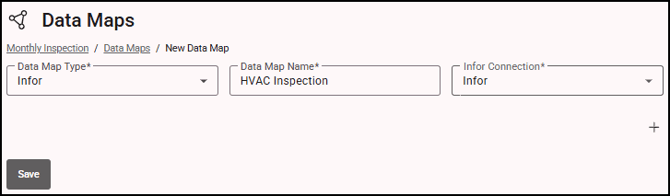
- Click + (Add Step) to complete the data map steps. Steps run in the order they appear in the list.
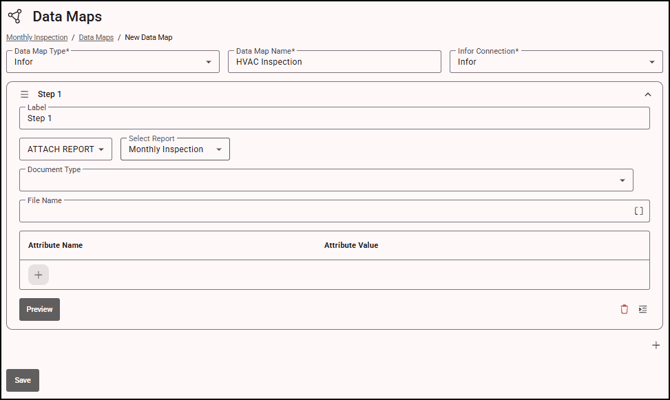
- Enter a label for the step. It is helpful to be descriptive with step labels. They are used in the Data Maps Log and make failures easier to find.
- Select the purpose of the data map. See HTTP Verbs for details about the request types.
To include media attachments in the data map, select Attach Media, then select the media field from the Select Media Field list.
This option ensures that only newly added media files are included in the data map. Existing media originating from Infor is excluded, allowing you to process only files captured or uploaded during the current form submission and avoid reprocessing or duplicating existing files.
To include report attachments, select Attach Report, then select the report from the Select Report list.
Select the Document Type. Choose the Infor document type from Infor used to store the file.
Complete the document attributes. Fill in the attributes displayed for the selected document type. Infor uses these values to associate the file with the appropriate record, such as an order or customer. You can insert merge fields into these attributes.
Specify a file name (optional). Enter a name for the attached file. Infor displays this name when a user downloads the file. The file name does not need to be unique.
-
If your form contains a repeatable group or a dynamic table with rows or groups, you may need to configure the map to iterate through each row or group and send the data individually to an endpoint in Infor.
To send a separate request for each row or group, place the relevant steps inside a step group and set the step group’s Iteration Target field to the repeating group or dynamic table. Configure the steps to use values from the current row or group.
The Iteration Target defines which repeating elements the map processes and determines where the iteration begins and ends.
- Configure the request and any additional attributes required by your Infor setup:
Request URL Enter the Infor address for the transaction. If the connection has a configured Base URL, enter only the remaining portion of the address.
Expand the URL builder to add query string values. Use the URL Preview to review the complete address.
Request Headers Optionally, add the header keys and values required by the Infor API. Request Content Enter the request body. Insert form fields as merge fields and enter fixed values directly alongside them as needed. Response Example Optionally, paste an example of the response returned by Infor, then select the Path to Results.
This configuration makes values from the response available as merge fields in subsequent steps.
Conditions Add a condition to a step or step group to control when it runs. The step or group runs only when the form submission meets the specified criteria. - If you want to preview the information that is going to be sent, click Preview to open the Preview window. Review the request that will be sent and any errors.
- Click Save. Infor data maps run when the form is submitted. Steps run one at a time in list order. If a step fails, the error is logged and the remaining steps run. The entire run is marked as failed in the log.
Note: For GET requests, Infor returns its data as a list. FormsPro uses only the first record in that list. To use a value from it in a later step, insert that step's response merge field. For example:

|
Problem |
What to Check |
|
A step fails with "not found" |
Check the Request URL. If the connection has a Base URL, remove the tenant address from the step. |
|
A later step has a blank value from an earlier step |
Confirm the earlier step has a Response Example and the correct Path to results, and that the value exists in the first record returned. |
|
A file does not appear on the Infor record |
Check the Document Type and attributes. The attribute values must match an existing Infor record. |
|
Only some rows reached Infor |
Check the step group's iteration target and any conditions on the steps. |