![OmniByte - PNG Black Logo Oct 2021 (1).png]](https://help.omnibyte.com/hs-fs/hubfs/OmniByte%20-%20PNG%20Black%20Logo%20Oct%202021%20(1).png?height=50&name=OmniByte%20-%20PNG%20Black%20Logo%20Oct%202021%20(1).png)
An Infor data set retrieves live data from Infor CloudSuite, such as customers, items, or work orders, for use in your forms. It works like a standard HTTP GET data set, with one additional step: specifying which part of the Infor response contains the rows you want to use.
Before You Begin
- Create an Infor data connection and confirm the test connection succeeds.
- Identify the Infor API endpoint you want to call. For example, an M3 list transaction: /M3/m3api-rest/v2/execute/CRS610MI/LstByNumber.
Creating the Data Set
- From the Reusable Components menu, select Data Sets. The Data Sets page opens.
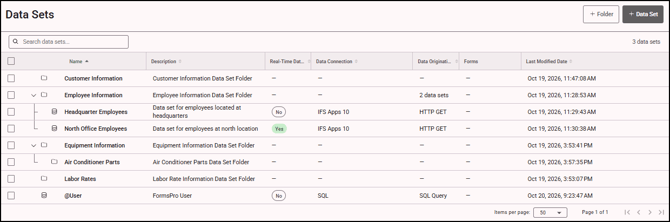
- Click + Data Set to open the Add Data Set tray.
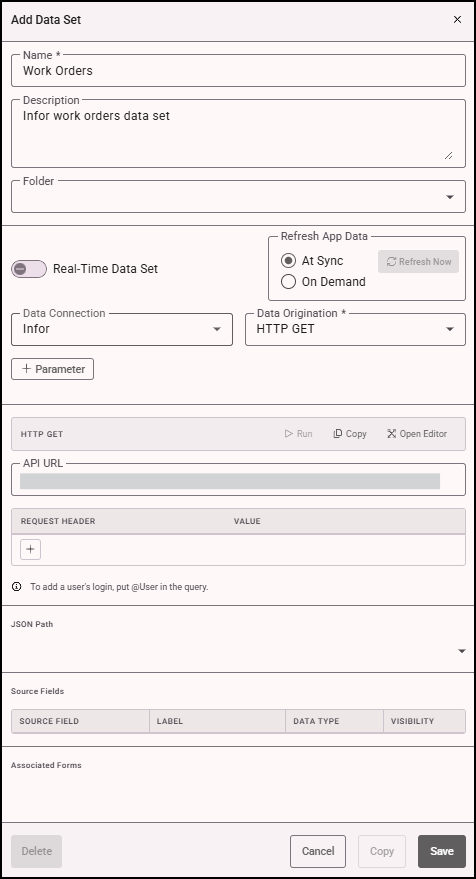
- Enter a Name and Description for the data set.
- Select the Folder you want to assign the data set to, if applicable.
- Select the Infor Data Connection you want to use for the data set.
- From the Data Origination field, choose HTTP GET. This tells the system that your data set will pull information from a web service by sending an HTTP GET request—a common method used to retrieve data from an API or online source.
- In the API URL field, enter the Infor address you want to connect to. This is the URL that the system will use to request data. Make sure the URL is correctly formatted and includes any required parameters or query strings. If the connection has a Base URL, enter only the rest of the address.
- Optionally, add parameters so the data set can be filtered by values from the form.
- Click Run to send the HTTP GET request to the URL you entered. The system will retrieve a response and display the data returned. If no data appears, double-check that the URL is correct and returns data when opened in a browser. You should also confirm that the web service you're connecting to supports HTTP GET requests.
- From the JSON Path list, select the path that contains the rows you want. FormsPro lists every path it found in the response. For most M3 transactions, choose $.results[*].records[*].
- Review the returned rows and columns in the Source Fields section. You can rename columns or change field types if needed.
- Click Save to save the data set. You can now begin using it in your forms.
- If you have any issues, see Troubleshooting Data Connection Issues.
Note: Infor responses often place the actual records several levels deep, and the layout varies between APIs. The JSON Path list appears only for Infor connections, and lets you point FormsPro at the right list without any custom setup.