![OmniByte - PNG Black Logo Oct 2021 (1).png]](https://help.omnibyte.com/hs-fs/hubfs/OmniByte%20-%20PNG%20Black%20Logo%20Oct%202021%20(1).png?height=50&name=OmniByte%20-%20PNG%20Black%20Logo%20Oct%202021%20(1).png)
The Email Configuration page allows you to set up and manage how to send email from your form application. To enable this functionality, it needs to be connected to an email service by configuring the correct email protocol. The following options are supported:
-
Office365
-
Use if your organization is already using Microsoft Office 365 for email.
-
Secure and seamless integration with your existing Microsoft accounts.
-
-
SMTP (Simple Mail Transfer Protocol)
-
A standard method for sending emails.
-
Can be used with a wide range of email providers, including Gmail, Outlook, and private mail servers.
-
Requires details like an SMTP server address, port, and credentials.
-
-
SendGrid
-
A cloud-based email delivery service.
-
Ideal for high-volume email sending.
-
Requires an API key and SendGrid account configuration.
-
Each of these options serves as a method to send emails from the system to recipients, depending on your organization's preferred email service.
Note: This setup usually requires access to sensitive credentials and specific server details. For that reason, it is recommended that your IT department or system administrator complete this configuration to ensure security and proper functionality.
Once properly configured, the system will be able to send emails reliably based on your chosen settings.
- From the Configuration menu, click Email to open the Email Configuration page.
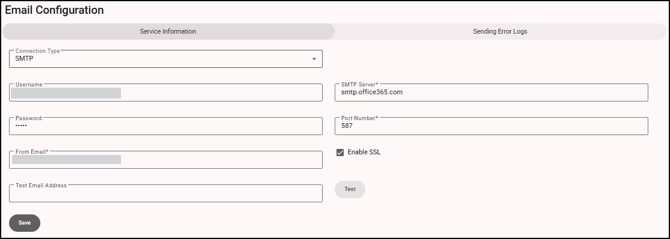
- On the Service Information tab, select Office365, SMTP, or SendGrid from the Connection Type drop down list.
- The email configuration settings vary depending on the connection type selected. For detailed instructions, refer to the relevant knowledge article for each option:
Office365
SMTP
SendGrid - Enter a valid test email address, such as your own address, then click Test to send a test email to ensure your settings are correct.
-
On the Sending Error Logs tab, click + (Add) to define who should be notified when errors or failures occur within the system. By configuring error log recipients, you can ensure that the appropriate administrators, developers, or support personnel receive timely information about issues that require attention, helping to minimize downtime and speed up troubleshooting.
To add a new error log notification rule, click + (Add). This opens a configuration entry where you can specify both the types of event logs to monitor and the email address that should receive the resulting notifications.
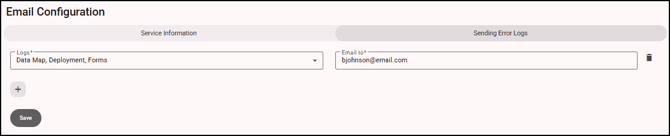
Select one or more of the following event log categories:
- API – Errors related to API requests, integrations, and communications.
- Data Map – Issues encountered during data mapping processes.
- Delete – Errors generated during record or data deletion operations.
- Deployment – Issues occurring during deployments.
- Forms – Errors associated with form processing, and submissions.
After selecting the log types, enter the email address that should receive notifications for those events. You can create as many log-and-recipient combinations as needed, allowing notifications to be routed to different teams based on responsibility. For example, API-related errors can be sent to the integration team, while deployment failures can be directed to system administrators.
In environments that host multiple active sites, configuring separate From email addresses for each site is strongly recommended. Distinct sender addresses make it easier to identify which site generated an error notification, helping support teams quickly determine the source of an issue and respond more efficiently.
- Click Save to save the configuration information.