![OmniByte - PNG Black Logo Oct 2021 (1).png]](https://help.omnibyte.com/hs-fs/hubfs/OmniByte%20-%20PNG%20Black%20Logo%20Oct%202021%20(1).png?height=50&name=OmniByte%20-%20PNG%20Black%20Logo%20Oct%202021%20(1).png)
The Email Configuration page allows you to set up email delivery using SMTP (Simple Mail Transfer Protocol). SMTP is the industry-standard protocol used to send emails across the internet, enabling messages to be transmitted from an application, email client, or server to their intended recipients.
Configuring SMTP allows the system to send automated emails such as notifications, alerts, password reset messages, workflow updates, reports, and other outbound communications.
SMTP is the standard communication protocol used for sending email messages between servers and email services.
It is:
- A universally adopted email-sending protocol used by most email providers and messaging systems.
- Responsible for routing and delivering outgoing email messages to recipient mail servers.
- Supported by popular email services such as Gmail, Outlook, Microsoft 365, Yahoo Mail, and private or enterprise mail servers.
- Designed to ensure reliable message delivery across different email platforms and networks.
When an email is sent from the application, SMTP handles the process of authenticating with the email server, transmitting the message, and forwarding it to the recipient's email provider.
To configure email successfully, you will typically need information provided by your email service provider, including:
- SMTP server address (host name)
- SMTP port number
- Authentication method
- Username or email address
- Password, application password, or secure access token
- Encryption settings (such as TLS or SSL)
These settings vary depending on the email service being used and must be entered correctly to ensure successful email delivery.
SMTP configuration requires access to sensitive authentication credentials, such as email account passwords, application-specific passwords, or secure authentication tokens. These credentials provide access to your organization's email infrastructure and should be handled with care.
For security and compliance reasons, it is strongly recommended that SMTP configuration be performed by your organization's:
- IT department
- System administrator
- Email administrator
- Security team
Administrators can ensure that the correct server settings, authentication methods, encryption protocols, and security policies are applied while minimizing the risk of unauthorized access or email delivery issues.
Important: Never share SMTP credentials with unauthorized users. Store all passwords and access tokens securely and follow your organization's security policies when configuring email services.
When configuring SMTP, consider the following best practices:
- Use secure authentication methods whenever available.
- Enable TLS or SSL encryption to protect email data during transmission.
- Use application-specific passwords or tokens instead of personal account passwords when supported.
- Restrict access to SMTP configuration settings to authorized administrators.
- Periodically review and rotate credentials according to your organization's security requirements.
Correct SMTP configuration helps ensure reliable email delivery while maintaining the security and integrity of your organization's communications.
- From the Configuration menu, click Email to open the Email Configuration page.
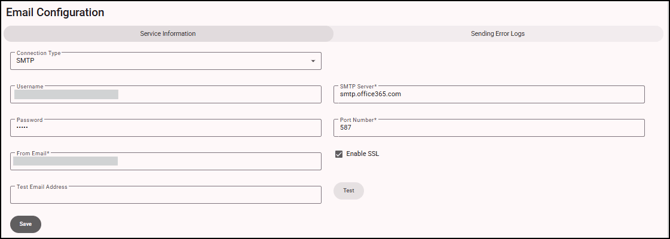
- Select SMTP from the Connection Type drop down list. SMTP is the default.
- In the Username field, enter an email address for the user that connects to the SMTP server and sends the email. This is typically the sender's email address, or a service account used to send emails.
- In the SMTP Server field, enter the hostname or address of your email provider's SMTP server. This information is supplied by your email service provider or IT administrator. Examples include smtp.office365.com or smtp.gmail.com.
- In the Password field, enter the password associated with the SMTP account. This credential is used to verify the identity of the account when connecting to the mail server
- In the Port Number field, enter the port number used by the SMTP server. The most commonly used port is 587, which supports secure email transmission using TLS (Transport Layer Security) encryption. If your email provider uses a different port, enter the value provided by your administrator or email service documentation.
- In the From Email field, enter the email address that appears in the From field in the email header for any emails sent from the mobile app. Recipients will see this address as the sender of notifications, alerts, and other system-generated messages.
- Mark Enable SSL if your SMTP server requires a secure connection. SSL (Secure Sockets Layer) encrypts communication between the application and the mail server, helping to protect authentication credentials and email data during transmission. Most modern email providers require SSL or TLS encryption.
- In the Test Email Address field, enter a valid email address where you can receive a test message. Using your own email address is recommended so you can quickly verify that email delivery is functioning correctly.
- Click Test to send a test email using the configuration settings you entered. If the email is received successfully, the SMTP settings have been configured correctly. If the test fails, review the server information, credentials, port number, and security settings before trying again.
- On the Sending Error Logs tab, click + (Add) to define who should be notified when errors or failures occur within the system. For more details, see Using the Email Configuration Page.
- Click Save to store the configuration settings. Once saved, the application will use these SMTP settings to send all outgoing emails.
Tip: Before saving the configuration, always send a test email to confirm that the connection, authentication credentials, and email delivery settings are working as expected.