![OmniByte - PNG Black Logo Oct 2021 (1).png]](https://help.omnibyte.com/hs-fs/hubfs/OmniByte%20-%20PNG%20Black%20Logo%20Oct%202021%20(1).png?height=50&name=OmniByte%20-%20PNG%20Black%20Logo%20Oct%202021%20(1).png)
The Localization page allows forms and reports to support multiple languages, making them accessible to users working in different regions or language preferences. With localization configured, app users can complete forms in their preferred (native) language, regardless of the language in which the form was originally created.
In addition, generated reports can be viewed in a customer’s preferred language—even if it differs from both the form’s default language and the app user’s selected language. This helps ensure clarity, accuracy, and usability across diverse teams and audiences.
Once you’ve completed designing and testing your form or to the point where changes will be minimal, you can use the Localization page to generate and manage translated labels, option and defaults for text values, and report content for each language you want the form available in.
You must be online to use localization; it is not supported for local installations. The Localization page is also not available for basic forms. Additionally, data pulled into a form from external sources (such as a data set) is not translated.
- From the toolbar, click
 (Additional Operations) and select Localizations to open the Localizations page.
- Click + Localization to open the Add Localizations window.
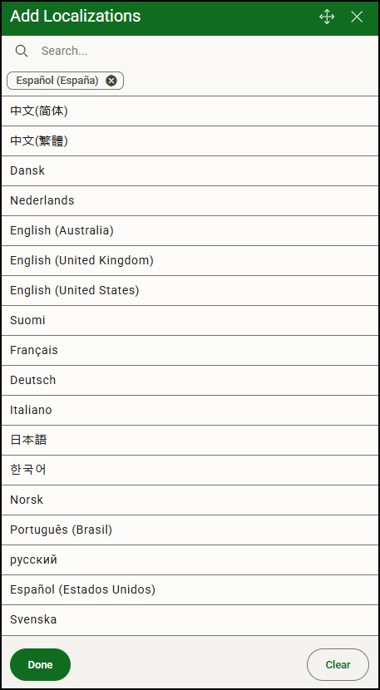
- Select the language(s) you want the form to be localized to, then click Done.
- Click Generate to open the Generate Translations window.
- Click Yes to generate the translations. Click No to not generate the localizations.
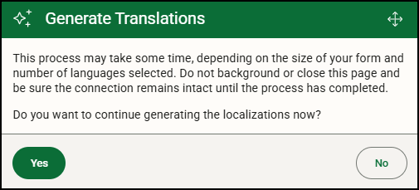
- Once the service has completed the process, it’s important to view the AI-generated text to ensure accuracy and context in the Localizations page. Incomplete localizations are indicated by an alert next to the Additional Operations icon.
- Click
 (Edit Localizations) to review and update translation details. When you modify a localized label,
  appears next to the field to indicate it's been changed, as shown for the Last Name field in the following illustration. . When you manually edit a localized label, your edit is maintained on subsequent generation. For example, let’s say the AI-generated localization didn’t match the context of your label, so you change localized field to be more clear in that language. Then, let’s say after a few months of form use, you add fields to the form. When you send the form through the service again, your edited fields maintain your changes unless you edit the field label in the originating language.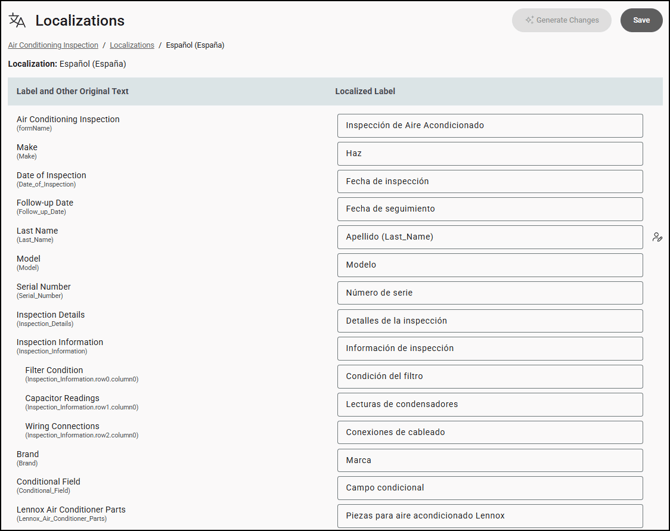
If you want container inputs, such as checkbox options, to be localized, you must toggle on the Displayed Value is Different than Saved Value option. In addition, you can translate the column and row labels in tables. - Save your localizations and use the Preview Form to select the language and to view the form in the languages you've set up. In the app, once you choose a language from the Settings menu, any localized forms will appear in the selected language.
- Continue with localizing your report.