![OmniByte - PNG Black Logo Oct 2021 (1).png]](https://help.omnibyte.com/hs-fs/hubfs/OmniByte%20-%20PNG%20Black%20Logo%20Oct%202021%20(1).png?height=50&name=OmniByte%20-%20PNG%20Black%20Logo%20Oct%202021%20(1).png)
A basic form uses an image (JPG, JPEG, BMP or PNG file) or PDF document as a background for your form and report. Basic forms provide an efficient way to upload existing forms and simply transforms a paper form to a digital format.
Reports from a basic form are only based off the form designer, so your form is your report. We recommend that you keep the number of pages to a minimum. You can add a submitted by and submitted date to the report.
- From the Form and Report Designer menu, select Forms. The Forms page opens.
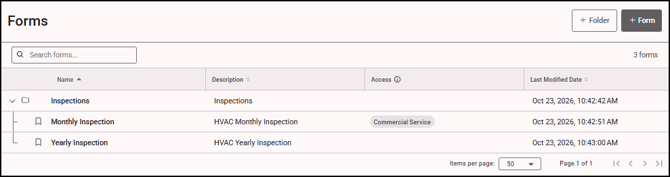
- Click + Form to open the Add Form tray.
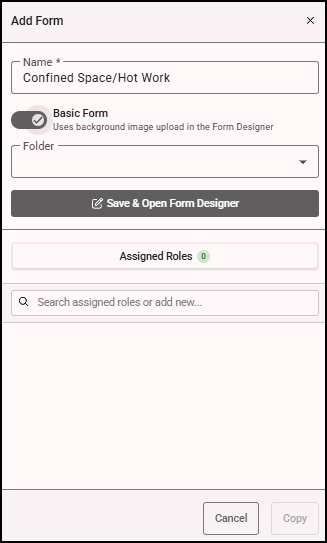
- Enter a name for the basic form and assign it to a folder (optional).
- Toggle the Basic Form toggle on.
- See Assigning Roles to a Form, for more information about assigning a role.
- Click Save & Open Form Designer to open the form designer.
- In the Form Designer, click + Upload Form.
- Drag and drop a file or click choose files to select the form you want to upload. The following file types can be uploaded: PDF, JPG, JPEG, PNG, and BMP.
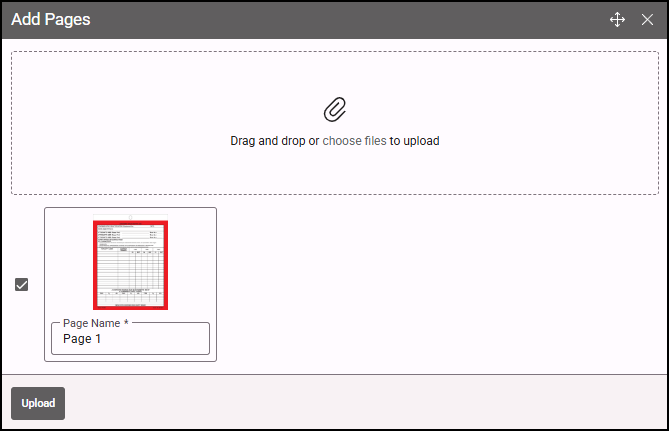
- Click Upload to upload the form. The form appears in the Form Designer.
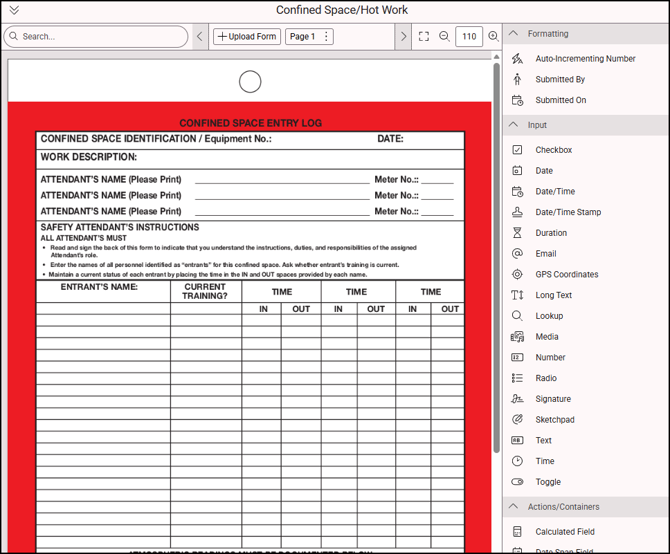
- Drag the inputs you want onto the form from the menu on the right. Each input has different property options available for additional formatting of the information you want entered on the form. The label field for each input is a required field, so that context is provided for data mapping and conditional fields.
- When you’ve completed designing your form, click Save.