![OmniByte - PNG Black Logo Oct 2021 (1).png]](https://help.omnibyte.com/hs-fs/hubfs/OmniByte%20-%20PNG%20Black%20Logo%20Oct%202021%20(1).png?height=50&name=OmniByte%20-%20PNG%20Black%20Logo%20Oct%202021%20(1).png)
Accurate date and time entry helps streamline scheduling, tracking, and reporting. It allows users to complete forms more quickly while ensuring consistent, reliable data.
The Date/Time input captures the date and time in a single field based on a user’s local time zone. The Date/Time input stores the value the same as a Date/Time Stamp input, but unlike the Date/Time Stamp input, the Date/Time input is editable.
Date/Time inputs follow the ISO 8601 standard for consistent formatting across systems.
The Date/Time inputs are available anywhere standard inputs are supported, including:
-
Search fields
-
Data maps
-
Deep links
-
Repeatable groups
-
Field and table cell validations
-
Field conditions (can be referenced but not used to drive conditions)
-
Sections
- Reports (as a date version, not a string)
To add a date/time input to a form, complete the following:
- From the Input menu in the Form Designer, click Date/Time.
- The Date/Time field is added to the form.

- Click on it to view the Date/Time input slider.
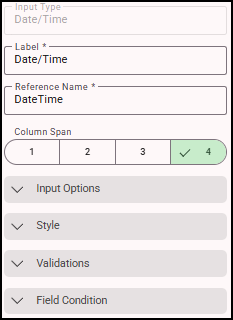
- In the Label field, enter a label for the Date/Time input. For standalone fields, the field label is displayed as defined on the form, whereas, in tables, the row or column name becomes the label for the Date/Time input.
- Select the column span size for the date/time input.
- Expand Input Options.
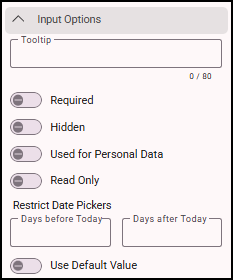
- To restrict dates in the past or future, enter the days before or after today's date for the restriction.
- Expand Style to specify the style settings for the date/time input. See Applying Styles to an Input for more information.
- Expand Validations to create a validation for the date/time input. See Creating Field Level Validations for more information.
- Expand Field Condition tab to create a condition for the date/time input.
- Save your entries.
- Click
 (Preview) to view how the Date/Time input will appear in the app. A Date/Time icon is added to the form and when clicked the current date and time appears on the form.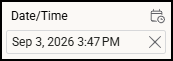
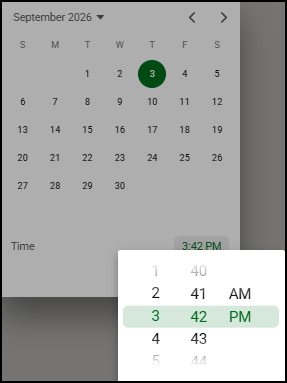
- To edit the date or time, simply click in the field to open a calendar where you can select the date and edit the time.