![OmniByte - PNG Black Logo Oct 2021 (1).png]](https://help.omnibyte.com/hs-fs/hubfs/OmniByte%20-%20PNG%20Black%20Logo%20Oct%202021%20(1).png?height=50&name=OmniByte%20-%20PNG%20Black%20Logo%20Oct%202021%20(1).png)
Use the Searchable Fields window to select up to 10 fields per form or section to improve search speed and efficiency. This is particularly useful when working with a large volume of form submissions, where searching across data can become slow and harder to manage. By selecting only the most relevant fields, results are returned more quickly and with greater accuracy.
Once configured, these fields are used as the primary source for searches in the View/Edit Submissions page, the Pending Forms page, and in the Data Maps Log. When a search is performed, the system focuses on these indexed fields, delivering faster and more predictable results. If no searchable fields are defined, the system will search across all form data, which may negatively impact performance.
By default, the system indexes Form Name, Submitted By, and Submission Date and these do not count toward your 10-field limit. Additional fields can be added based on specific needs, but they should be chosen carefully to maintain optimal performance. When searching by date, be sure to use the same display format shown in the system, as dates are stored and matched in that format.
Fields selected for searching on sections that have been added to your form are automatically selected here and cannot be changed. They do not count toward your 10 field limit.
Most field types can be searchable, including:
- Text, number, email, date/time
- Checkbox, radio, toggle, select
- Calculated fields
- Fields in repeatable groups or conditional logic (the label for the group helps provide context and will appear disabled since it can't be selected)
- Hidden fields
We recommend to periodically review existing forms and configure searchable fields where needed, especially for older forms. This helps improve the ability to locate historical submissions and ensures a consistent search experience across the system.
- Open the form for which you want to index searchable fields.
- Click
 (Additional Operations), then select Searchable Fields to open the Searchable Fields window.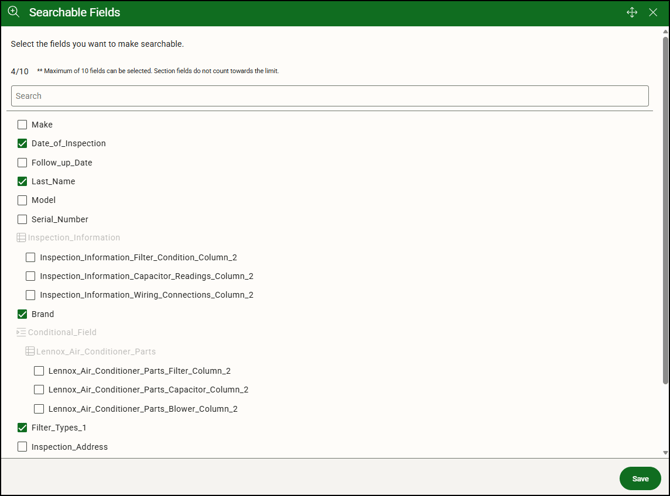
- Mark each field you want to make searchable. If you're selecting fields on a form, fields in sections will appear disabled, and those marked on the sections cannot be changed on the form. Make changes at the section level and apply the changes to the form.
When choosing fields to index, it’s important to prioritize those commonly used to locate submissions, such as Work Order Number, Customer ID, or Email Address. These are typically unique or frequently referenced values. Avoid indexing fields that are overly general or repetitive, such as comments or long descriptions, as they offer little benefit to search performance.
Although up to 10 fields can be indexed per form, it is recommended to use this limit sparingly. Selecting too many fields can reduce the effectiveness of indexing, as over-indexing diminishes performance benefits and can make results less efficient, especially if your form contains a number of sections with searchable fields. In practice, maximizing indexing all fields provides little advantage compared to indexing none, so focusing on a small set of high-value fields is ideal .
- Click Save to save your selections, then save the form.
-
After configuring searchable fields and submitting the form, you can search using indexed fields in the View/Edit Submissions, Pending Forms, or Data Maps Log pages.
For example, in an Air Conditioning Inspection form, if Brand is indexed, searching for “Trane” will return all submissions where the air conditioner brand is recorded as Trane.