![OmniByte - PNG Black Logo Oct 2021 (1).png]](https://help.omnibyte.com/hs-fs/hubfs/OmniByte%20-%20PNG%20Black%20Logo%20Oct%202021%20(1).png?height=50&name=OmniByte%20-%20PNG%20Black%20Logo%20Oct%202021%20(1).png)
The Home page is the main landing area of the Admin site. From here, you can quickly search for and navigate to specific forms or pages, making it easy to view key parts of your system.
At the top of the page, you’ll see important site details—like the name of the logged-in user and the site you’re currently working in. This is especially helpful if you manage multiple environments (for example, testing and production) and need to confirm you're in the right one.
The Home page also displays a list of your 10 most recently opened pages, so you can quickly reopen them without navigating through menus.
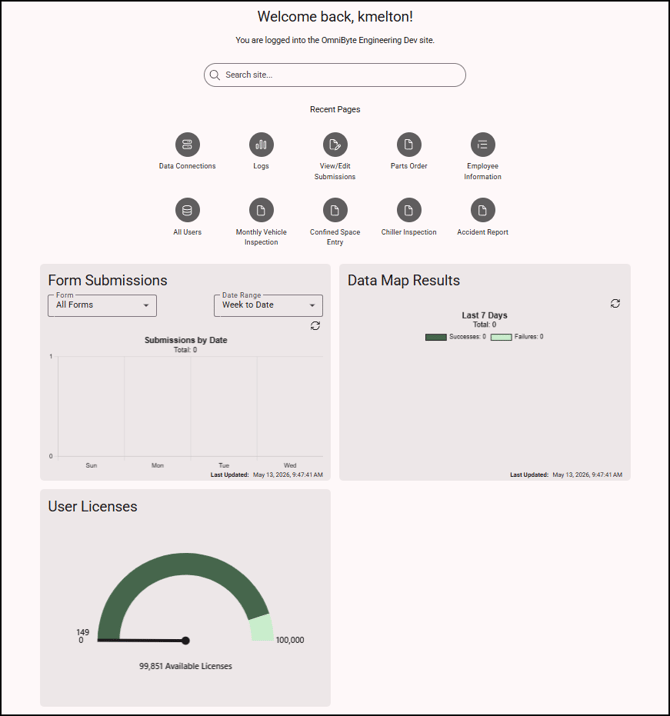
In addition, there are three dashboards on the Home page that help you monitor form submissions, data map results and user licenses.
The Form Submissions dashboard helps you quickly monitor how many forms have been submitted over a certain time period, without needing to run any reports manually.
This dashboard displays the total number of form submissions by date. This total includes all forms submitted during the selected date range (month to date, week to date or year to date).
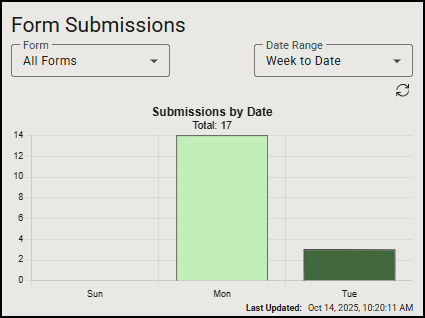
Click the Sync button to refresh the data and give you the latest form submission counts.
To view submissions for a specific form:
-
From the Form list, select the form you want to view.
- From the Date Range list, select to view the form submissions for the month, week or year.
-
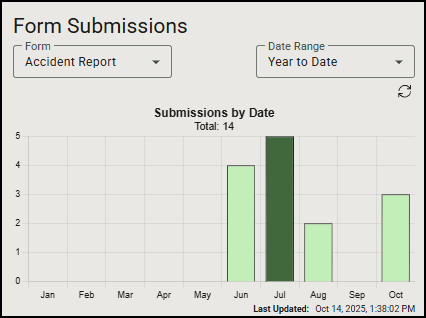
The dashboard will refresh to show only the submission count for that specific form. For example, in the following illustration you can see the year-to-date submissions for the Accident Report.
The Data Map Results dashboard provides a quick overview of your data map performance, showing how many are functioning correctly (successes) and how many contain errors (failures).
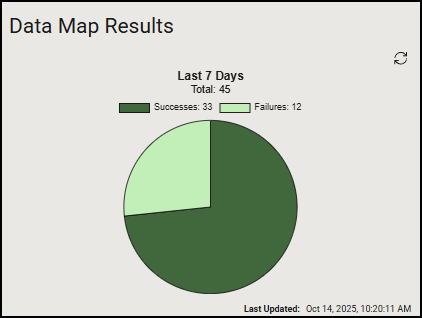
The dashboard displays data for the last 7 days and updates automatically once a day. For the most current information, click the Sync button to refresh the data.
You can click on the pie chart to open the Data Maps Log, where you can review data map details.
The User Licenses dashboard gives you a clear view of how your organization's user licenses are being used. It helps you monitor license allocation and make informed decisions about license management.
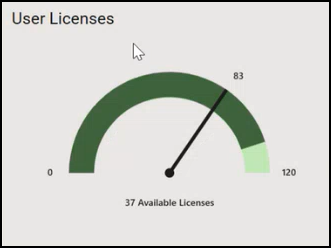
The dashboard shows the number of user licenses your organization has currently purchased, how many of those licenses are actively assigned to users and the number of licenses that are still unassigned and available for new users. The color will change at 90% of your license allocation. This can help you plan whether you need more licenses in the near future.