![OmniByte - PNG Black Logo Oct 2021 (1).png]](https://help.omnibyte.com/hs-fs/hubfs/OmniByte%20-%20PNG%20Black%20Logo%20Oct%202021%20(1).png?height=50&name=OmniByte%20-%20PNG%20Black%20Logo%20Oct%202021%20(1).png)
The Forms page provides a centralized view of all folders and forms in your system, making it easy to review form details, understand access assignments, and manage your form structure in one place.
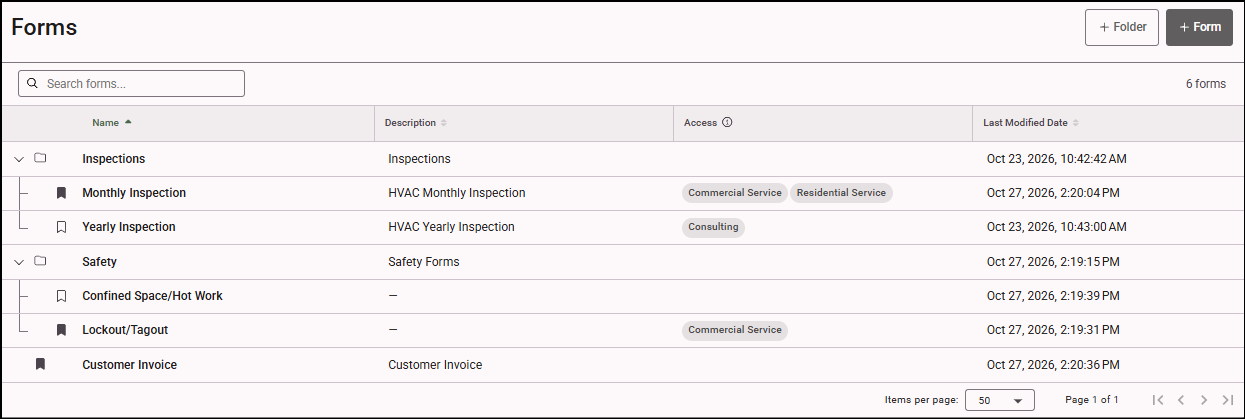
From this page, you can view key information about each form and folder, including:
- Form and folder names: Quickly identify forms and folders within your system.
- Form descriptions: Review descriptions to understand the purpose of each form.
- Assigned roles: See which roles are assigned to each form.
- Folder assignments: View the users and teams assigned to each folder.
- Last modified date: Check when a form or folder was last updated to help track recent changes.
The Access column identifies the users and teams that have access to each folder and form. The chips displayed in this column help you distinguish between individual users and teams:
- Colored chips: Identify individual users who have access to the folder or form.
- Non-colored chips: Identify teams that have access to the folder.
Note: The appearance of colored chips depends on your selected color theme. If you change your theme, the chip colors may differ.
The Forms page also allows you to create new folders and forms directly from the same view. This makes it easier to organize your content and expand your form library without navigating to a separate page.
To make information easier to review, you can adjust column widths to suit your needs. Resize columns to display more of the information you need, improve readability, and tailor the page to your preferred viewing layout.
By bringing form details, role assignments, folder access, and modification dates together in one place, the Forms page helps you efficiently navigate, organize, and manage forms and folders across your system.