![OmniByte - PNG Black Logo Oct 2021 (1).png]](https://help.omnibyte.com/hs-fs/hubfs/OmniByte%20-%20PNG%20Black%20Logo%20Oct%202021%20(1).png?height=50&name=OmniByte%20-%20PNG%20Black%20Logo%20Oct%202021%20(1).png)
The Form Settings window allows you to manage key options for your basic forms. You can use it to:
-
Manage form versions and track any changes
-
Apply a template to the form
-
Compress reports to a ZIP file
-
Copy existing form submissions
-
Manage attachments
The Form Settings window differs slightly if you are using advanced forms. See Using the Form Settings Window for more information.
- From the toolbar, click
 (Settings) to open the Form Settings window.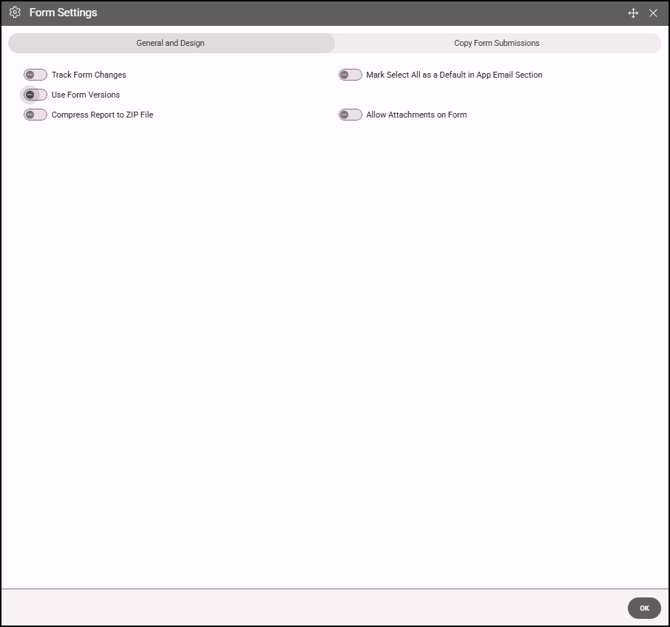
- Click the General and Design tab to configure general settings for the form.
- Toggle the following options as needed:
Track Form Changes: Enables tracking of all changes made to the form after its initial save.
Use Form Versions: Allows the creation and use of different versions of the form.
Compress Report to ZIP File: Converts a report file into a ZIP archive to reduce file size, preserve image quality, and simplify sharing large reports via email.
Mark Select All as a Default in App Email Section: Automatically selects the Select All checkbox in the Emails section of the app form.
Allow Attachments on Form: Allow users to upload documents such as images and PDFs when completing the form.
- Click the Copy Form Submissions tab to set how users can copy form submissions from the app.
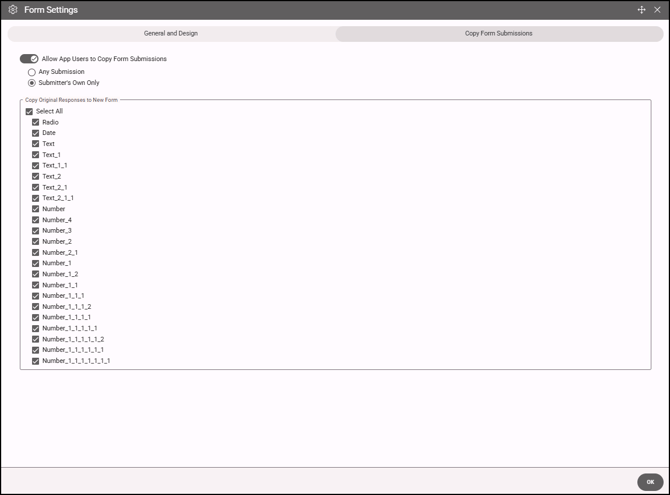
- Toggle Allow App Users to Copy Form Submissions on to enable this functionality.
- Set copy permissions:
Choose whether users can copy only their own submissions or any available submission.
Unmark any fields that should not be copied to the new form submission. - Click OK to close the Form Settings window and apply your changes.
- Click Save to save these settings on your form.