![OmniByte - PNG Black Logo Oct 2021 (1).png]](https://help.omnibyte.com/hs-fs/hubfs/OmniByte%20-%20PNG%20Black%20Logo%20Oct%202021%20(1).png?height=50&name=OmniByte%20-%20PNG%20Black%20Logo%20Oct%202021%20(1).png)
Use the Form Deployment page to move your forms, and related components, between sites. For example, you may build and test a form, its data mappings and reports in a “Test” site. Once everything looks good, you can deploy the form to your “Production” site without manually re-configuring integration settings.
Note: The destination site must be on the same or a newer version than the source site. Deployments to older versions are not supported.
The following components are included when deploying a form:
- Additional Emails
- Auto-Incremented Numbers
- Data Maps
- Data Sets
- Envelopes
- Form Actions
- Form Validations
- Reports
- Sections
- User-Defined Fields
- Visual Setting Templates
Before deploying, make sure a data connection is set up to the site you're deploying from. Deployments are always done from the site you want the form to end up in. So, if you're moving a form from “Test” to “Production,” you'll initiate the deployment from the “Production” site. On the Form Deployment page, select Deployment Connection as the connection type, and enter the URL of the “Test” site.
- From the Form and Report Designer menu, select Form Deployment. The Form Deployment page opens.
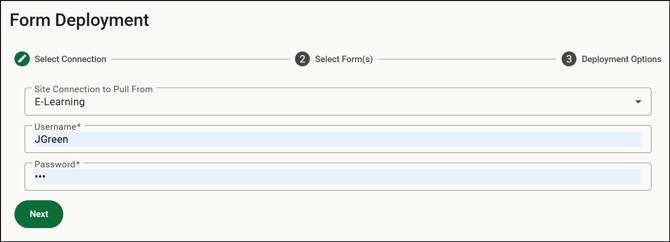
- Select the site connection from which you are deploying forms. If you select a site that supports single sign-on (SSO) a Sign in with Microsoft button displays.
- Enter a username and password for the connection. You must use a user that is a Super User in the “from” site to continue. Click Next.
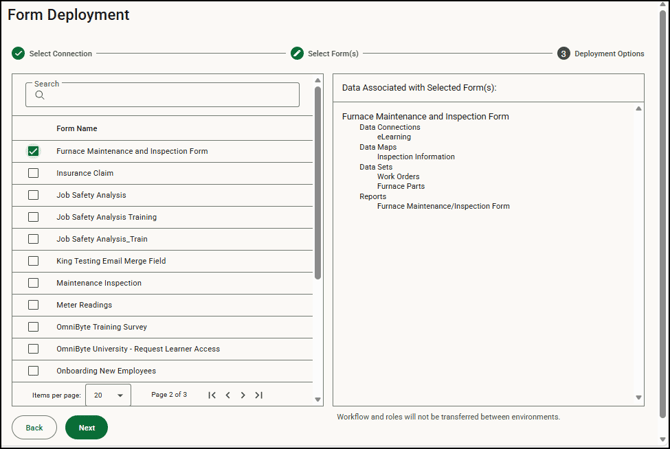
- Use the Search field to easily find a form, then mark each form you want to deploy. Each selected form appears in the Data Associated with Selected Form(s) list, along with the components that will be included in the deployment. Although data sets will deploy with the form, any connections must already exist in the target site.
The list allows you to confirm whether the site has all the connections necessary for a successful deployment. If a required connection is missing, a window will appear identifying the connections that need be configured: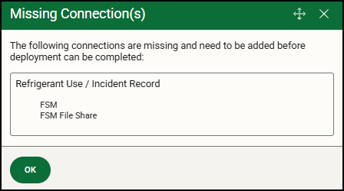
For example, if your form has attachments, the appropriate attachment data connections must be set up in the “Production” site before you can deploy. - Click Next.
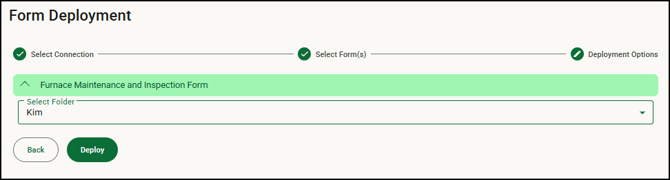
- Depending on the deployment scenario, enter information for the selected forms:
Scenario Action Form does not exist in the deployed to environment. You will be asked to select what folder the form will be in. You will have the option to put the form in the default Forms folder. Form exists in the deployed to environment and does not have versioning enabled. You will have the option to overwrite the form or create a new version. Versioning will turn on if “create a new version” is selected. If the version is selected, enter a version name and version comments. Form being deployed has versioning enabled. The latest version of the form will be deployed, and versioning will be automatically turned off. You can manually turn versioning back on after deployment. Form already exists in environment and versioning is enabled. You’ll be prompted to enter a version name and comments. The version name field will be auto-filled with the next version number. In this case, you won’t have the option to overwrite the existing form. 
- Click Deploy. A message will appear that the deployment was successful. After a form has been deployed, you can view the deployment in the Deployment Log.