![OmniByte - PNG Black Logo Oct 2021 (1).png]](https://help.omnibyte.com/hs-fs/hubfs/OmniByte%20-%20PNG%20Black%20Logo%20Oct%202021%20(1).png?height=50&name=OmniByte%20-%20PNG%20Black%20Logo%20Oct%202021%20(1).png)
Use the Edit User tray to update user information, such as passwords, permissions, and license status. For details about the fields in this window, refer to Using the Add User Tray.
If the user was added through another application, a Managed with Single Sign-On checkbox appears at the top of the window.
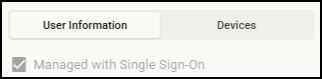
This checkbox is always disabled. When it is selected, the Username, Display Name and Email fields become read-only. The Password field is hidden.
- From the Administration menu, click Users to open the Users page.
-
Click any username in the list on the Users page to open the Edit User tray.
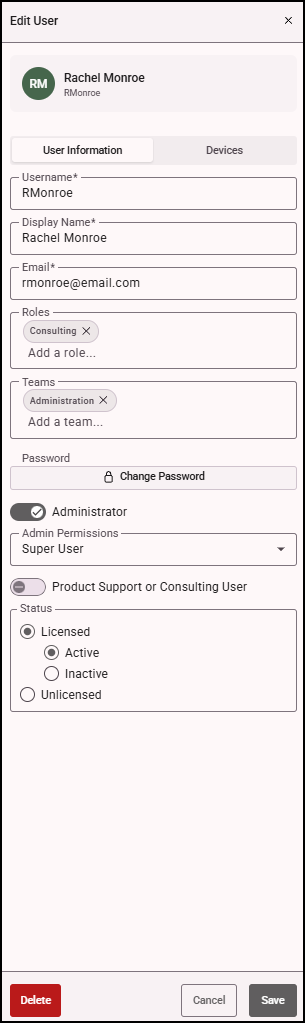
- Make changes to the user information, as needed.
- Click Devices to open the Devices tab, where you can view device usage information, including the device ID, manufacturer, model, type, platform, version and recent activity. This information is updated when a form is submitted or during a sync.
- Click Save to save your changes.
- To delete the user, click Delete.