![OmniByte - PNG Black Logo Oct 2021 (1).png]](https://help.omnibyte.com/hs-fs/hubfs/OmniByte%20-%20PNG%20Black%20Logo%20Oct%202021%20(1).png?height=50&name=OmniByte%20-%20PNG%20Black%20Logo%20Oct%202021%20(1).png)
The Row Highlighting section of the input slider lets you set a table row to be highlighted with a background color based on the way a specific column or cell is answered. The highlight color you configure also appears on reports, so no additional setup is required for reporting purposes.
- To access row highlighting, click on an input to open its slider and expand Row Highlighting.
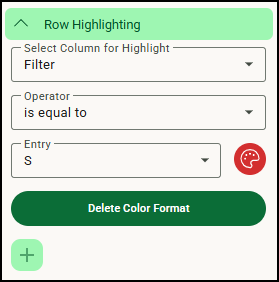
- From Select Column for Highlight, select the column heading for which you want to set a row to be highlighted with a background color.
- Click
 (add), then select the operator and entry to which the background color should be applied.
 - Click
 (color palette), then select the color you want to apply.
 - Save your entries.
Note: Any unlabeled columns will not appear in the list to highlight.