![OmniByte - PNG Black Logo Oct 2021 (1).png]](https://help.omnibyte.com/hs-fs/hubfs/OmniByte%20-%20PNG%20Black%20Logo%20Oct%202021%20(1).png?height=50&name=OmniByte%20-%20PNG%20Black%20Logo%20Oct%202021%20(1).png)
Microsoft Intune is a cloud-based device management service from Microsoft that organizations can use to manage, configure, secure, and control devices such as Android phones and tablets.
For organizations using FormsPro on Android devices in kiosk mode, Microsoft Intune can serve as the organization's mobile device management (MDM) solution. Intune allows administrators to centrally configure devices and applications, apply security policies, control what users can access, and remotely manage devices.
This can be particularly useful when Android devices are deployed as dedicated FormsPro kiosks, where the organization wants the devices to have a controlled and consistent configuration.
MDM (Mobile Device Management) is the general term for a system or solution used to manage mobile devices.
Microsoft Intune is one specific MDM solution provided by Microsoft.
In other words:
- MDM = the type of technology used to manage devices.
- Microsoft Intune = Microsoft's MDM solution.
- FormsPro = the application that can be deployed and configured on those managed devices.
When FormsPro is implemented on Android devices, Intune can help administrators prepare and maintain those devices without having to configure every device manually.
For example, an organization can use Intune to:
- Set up Android devices for individual employees or shared use.
- Install and manage FormsPro and other required applications.
- Restrict which applications users are allowed to access.
- Configure Android device settings.
- Apply organizational security policies.
- Set up and manage Android kiosk mode.
- Remotely manage and maintain enrolled devices.
- Apply consistent configurations across multiple devices.
This makes Intune especially useful for organizations that use a large number of FormsPro devices or need to maintain tightly controlled kiosk environments.
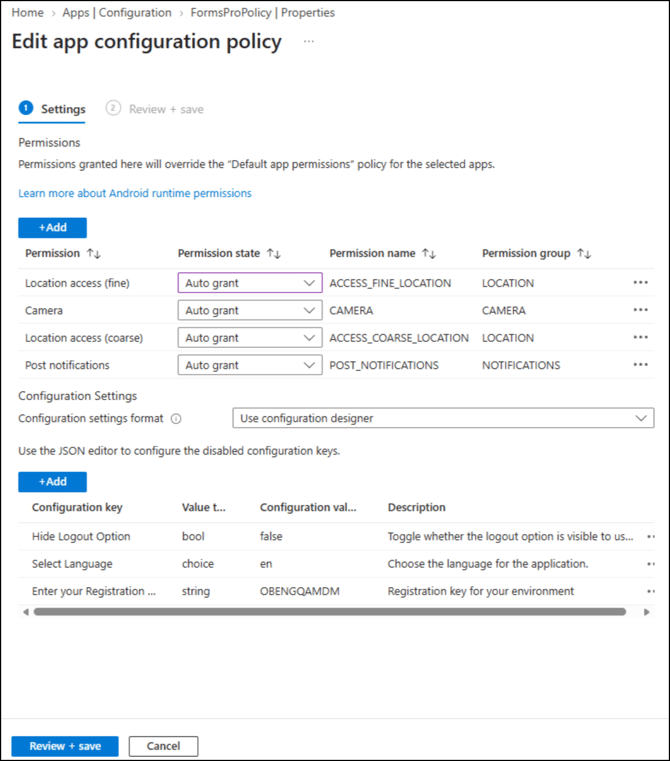
FormsPro supports application configuration through Microsoft Intune. This allows administrators to provide FormsPro with specific configuration values when the application is installed or managed on an Android device.
FormsPro's Intune app configuration capabilities allow administrators to centrally configure important application settings, including:
|
Registration Key |
The registration key can be configured through Intune so that FormsPro receives the required registration information when it is deployed to a managed Android device. This can help simplify implementation by allowing administrators to configure FormsPro centrally rather than manually entering the registration information on every device. For organizations managing multiple kiosk devices, centrally configuring the registration key can make implementations more consistent and reduce setup time. |
| Language |
The FormsPro language can be configured through the app configuration policy. This allows an organization to specify the language that FormsPro should use on managed devices, helping ensure that the application is presented consistently to users. For example, an organization implementing FormsPro across multiple devices can use Intune to apply the same language configuration to all applicable devices. |
| Hide the Logout Option |
FormsPro can also be configured to hide the Logout option. This can be particularly useful for kiosk implementatioms where the device is intended to run FormsPro continuously and users should not be able to log out of the application. |
These settings allow an organization to standardize the FormsPro experience across managed devices and reduce the amount of manual configuration required on each device.
To configure FormsPro through Microsoft Intune:
- Sign in to the Microsoft Intune admin center.
- Select Apps from the navigation menu.
- Select App configuration policies.
- Locate and select the FormsPro app configuration policy.
- Open Settings.
- Configure the available FormsPro settings.
- Save the policy after making the required changes.
The exact options displayed may depend on how the FormsPro app configuration policy has been created and assigned.