![OmniByte - PNG Black Logo Oct 2021 (1).png]](https://help.omnibyte.com/hs-fs/hubfs/OmniByte%20-%20PNG%20Black%20Logo%20Oct%202021%20(1).png?height=50&name=OmniByte%20-%20PNG%20Black%20Logo%20Oct%202021%20(1).png)
Auto-incrementing numbers are user-defined document numbers that help improve document tracking. These numbers automatically increment when a form is submitted (with the auto-incrementing field left blank), when a form is dispatched, or manually by clicking the Get a Number icon.
You can add the same user-defined number to multiple forms. It can also be mapped to a linked form, allowing both parent and child forms to share the same number for consistent tracking.
To create an auto-incrementing number, complete the following:
- From the Reusable Components menu, select Auto-Incrementing Numbers. The Auto-Incrementing Numbers page opens.
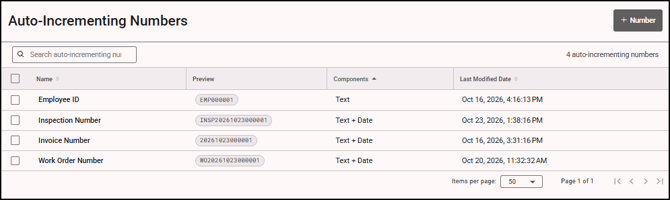
- Click + Number. The Add Auto-Incrementing Number tray opens:
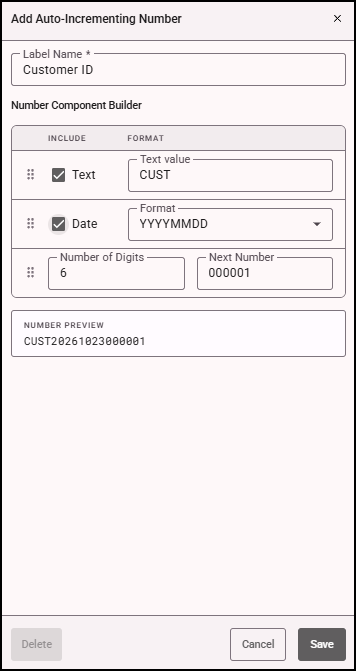
- In the Label Name field, enter a label for the auto-incrementing number.
- Mark Text to include a prefix to the number, then enter the text format.
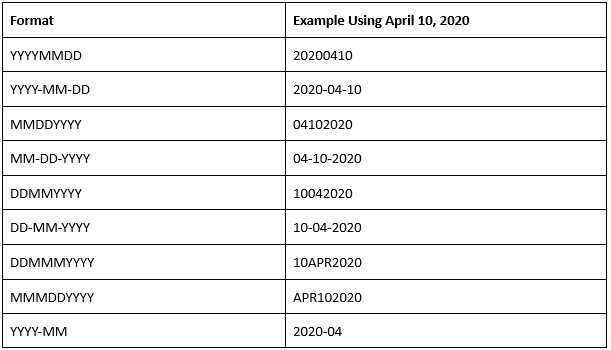
- Mark Date to include a date in the number, then select the date format. The date formats include:
- Enter the number of digits you want the auto-incrementing number to contain, then enter the next number to appear on the form. The Number Preview field displays the number that appears on the form.
- The user-defined number can be arranged in the order you want by dragging and dropping
 (handle icon) for the Text, Date, and Number of Digits fields.
 - Click Save. The auto-incrementing number is now available to add to a form.
- To add an auto-incrementing number to a form, see Adding an Auto-Incrementing Number to a Form.