![OmniByte - PNG Black Logo Oct 2021 (1).png]](https://help.omnibyte.com/hs-fs/hubfs/OmniByte%20-%20PNG%20Black%20Logo%20Oct%202021%20(1).png?height=50&name=OmniByte%20-%20PNG%20Black%20Logo%20Oct%202021%20(1).png)
If you need to visually compare a current photo or document with one from a previous submission, such as checking equipment condition or verifying a picking ticket, you can use an alternate gallery source in your form. This allows users to access and reuse existing media stored in your system, rather than relying only on new uploads or files stored locally on their device. It’s especially useful for processes that depend on historical records or require consistency across submissions.
Note: This feature is only available with an IFS Cloud connection.
This procedure shows you how to enable the Use Alternate Gallery Source toggle within a Media input on your form. It assumes you’ve already added a media input. If not, see Adding a Media Input to a Form for detailed instructions.
- Click on the Media input for which you want to use an alternate gallery to view the input slider.
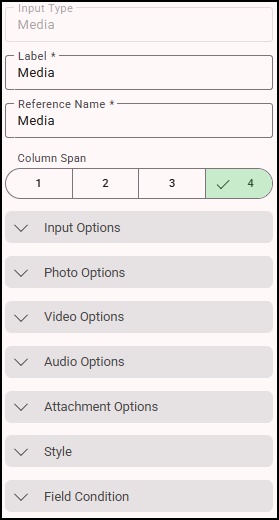
- Expand Input Options.
- Toggle on Use Alternate Gallery Source. This enables the media input to retrieve existing media from IFS Cloud, rather than limiting users to photos on their device or files uploaded directly from the app. Once this option is enabled, the Gallery Source Connection field becomes required.
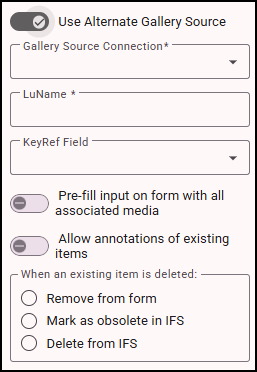
- From the Gallery Source Connection list, select the IFS Cloud connection you want to use. This connection must already be configured in your system. The system requires this information to store different types of media from IFS Cloud. Any media added through this connection will be stored in the specified attachment location, and if media is later removed from the form, it will also be deleted from the associated attachment folder.
- In the LuName field, enter the logical unit name used by IFS Cloud. This identifies the type of object the media is associated with (for example, equipment, work orders, or other business entities). Be sure the value matches the corresponding IFS Cloud configuration.
- From the KeyRef Field list, select the field that identifies the specific item in IFS Cloud. This ensures the correct media is retrieved and linked to the appropriate item. The selected field should contain a valid identifier for the associated object.
- To automatically populate the media field with all media related to the LuName and KeyRef fields in IFS, toggle on Pre-fill input on form with all associated media. This can reduce manual effort, but it is recommended only when the number of associated media files is relatively small, as large volumes may impact usability and performance.
- If you need users to be able to mark up or comment on previously stored media, toggle on Allow annotations of existing items. Annotations are applied only within the context of the report and do not modify or update the original media stored in IFS Cloud.
- Select how existing media items should be managed when users interact with them. These options align with IFS Cloud's native media management to ensure consistency:
Remove from Form: Removes the media from the form only, without making any changes in IFS Cloud.
Mark as Obsolete in IFS: Updates the media's status in IFS Cloud to indicate it is obsolete.
Delete from IFS: Permanently delete the media from IFS Cloud. In the app, you will be asked if you are sure you want to delete the item. - Save your changes. Now app users can select and manage attachments from the alternate gallery directly within their forms.
-
Once configured, app users can:
- Browse and select existing media from the alternate gallery
- Upload new media directly to the configured IFS Cloud location
- Manage attachments according to the selected behavior rules
This setup streamlines processes that depend on historical media, improves consistency across submissions, and reduces redundant uploads.