![OmniByte - PNG Black Logo Oct 2021 (1).png]](https://help.omnibyte.com/hs-fs/hubfs/OmniByte%20-%20PNG%20Black%20Logo%20Oct%202021%20(1).png?height=50&name=OmniByte%20-%20PNG%20Black%20Logo%20Oct%202021%20(1).png)
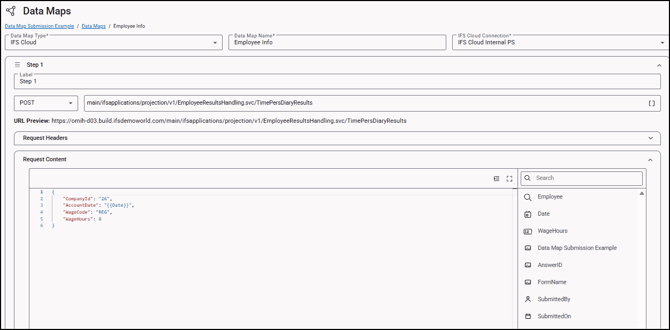
Data maps provide a simple and flexible way to send submitted form data to external systems, such as IFS Cloud. They define how data captured in a form is mapped, transformed, and structured into a JSON payload (a standardized, text-based format used to exchange data between applications). The JSON payload is then sent to a REST API endpoint, allowing your forms to integrate seamlessly with external systems and automate data exchange without requiring custom development.
Request Processing
Once a form is submitted, FormsPro automatically processes and sends the data to the configured REST endpoint through the following steps:
Collect submitted data
FormsPro collects the values entered into each field of the submitted form.
Replace merge fields
Merge fields in the data map (for example, ) are replaced with the corresponding values from the form submission.
Generate the JSON payload
FormsPro constructs a JSON request body by combining the configured payload structure with the submitted form data.
Send the API request
The JSON payload is sent to the configured REST endpoint using the selected HTTP method, such as POST, PUT, or PATCH.
Log the execution
FormsPro records both the request and response in the Data Maps log for auditing and troubleshooting purposes.
FormsPro is responsible only for transmitting the request. Any validation of data—such as required fields, formatting rules, or business logic—is handled by the receiving system (for example, IFS Cloud). If the request is rejected, the response returned by the external system is captured and stored in the Data Maps log.
Merge Fields
Merge fields are placeholders enclosed in double curly braces () that represent values entered by the user when completing a form. When the form is submitted, FormsPro automatically replaces each merge field with the corresponding submitted value before generating the JSON payload.
Example form submission:
| Form Field | Submitted Value |
|---|---|
| Employee | EMP001 |
| Date | 2026-06-29 |
| WageHours | 8 |
If the data map contains the following merge fields:
-
{WageHours}}
{ "CompanyId": "26", "EmpNo": "EMP001", "AccountDate": "2026-06-29", "WageCode": "REG", "WageHours": 8 }Using merge fields allows a single data map to dynamically populate API requests with data from each form submission, eliminating the need to manually construct a unique JSON payload for every request.
Data Types
When configuring a data map, ensure that each value is formatted using the data type expected by the target REST API. Using the correct data type is essential because many APIs validate incoming data. If a value is formatted incorrectly, such as sending a number as text, the request may be rejected or produce unexpected results.
Common JSON data types include:
| Data Type | Example |
|---|---|
| String | "EmpNo": "EMP001" |
| Date | "AccountDate": "2026-06-29" |
| Number | "WageHours": 8 |
Important formatting rules:
String and date values must be enclosed in quotation marks.Numeric values must not be enclosed in quotation marks.
Correct:
"WageHours": 8Incorrect:
"WageHours": "8"Sending incorrect data types may cause the receiving system to reject the request or misinterpret the value.
Troubleshooting
If a request does not complete successfully:
- Verify that the endpoint URL is correct.
- Confirm the HTTP method matches the target API.
- Ensure JSON property names match the API specification.
- Verify merge fields resolve to the expected values.
- Confirm numeric and date fields are formatted correctly.
- Review the Data Maps log to inspect both the request payload and the response returned by the target system.
The Data Maps log is an effective way to verify the exact JSON that FormsPro generated and submitted.