![OmniByte - PNG Black Logo Oct 2021 (1).png]](https://help.omnibyte.com/hs-fs/hubfs/OmniByte%20-%20PNG%20Black%20Logo%20Oct%202021%20(1).png?height=50&name=OmniByte%20-%20PNG%20Black%20Logo%20Oct%202021%20(1).png)
To automatically resize text within a control, first select the control (such as a label or table cell) in the Report Designer. In the Behavior section of the properties menu, clear the Can Grow checkbox. Next, set Text Fit Mode to Shrink Only. This allows the text or value to reduce in size as needed to fit within the control's boundaries.
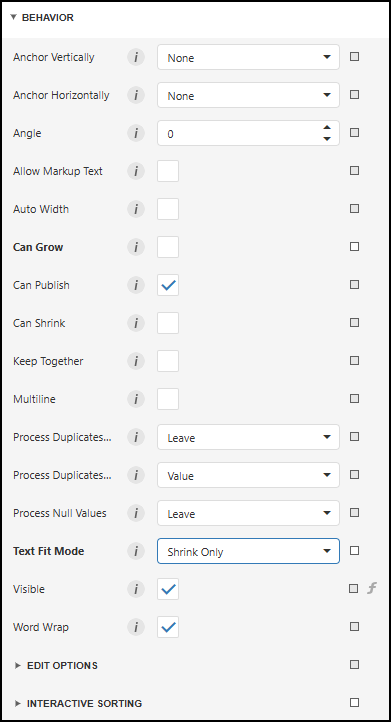
If you want text to wrap onto multiple lines when necessary, mark the Word Wrap checkbox. When Word Wrap is enabled, the text can both shrink and wrap to fit the available space. If Word Wrap is disabled, the text will continue to shrink until it fits on a single line within the control.