![OmniByte - PNG Black Logo Oct 2021 (1).png]](https://help.omnibyte.com/hs-fs/hubfs/OmniByte%20-%20PNG%20Black%20Logo%20Oct%202021%20(1).png?height=50&name=OmniByte%20-%20PNG%20Black%20Logo%20Oct%202021%20(1).png)
You can configure a report to display submission details, such as who submitted the form and when it was submitted, by adding the appropriate fields in the Report Designer.
- Open the Report Designer.
- On the left-hand side of the report designer, click
 (Field List).
 - Expand the name of the report, then expand Form Answers to display the available fields.
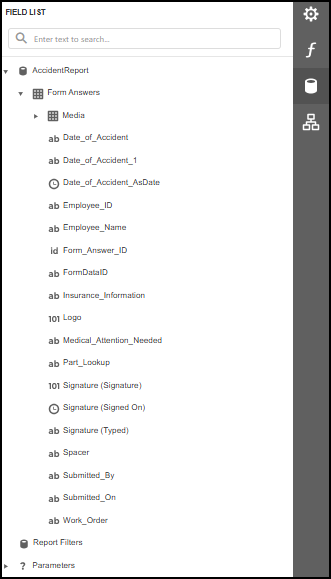
- Scroll through the list to find the Submitted_By and Submitted_On fields.
- Drag the Submitted_By and/or Submitted_On fields onto your report where you want the information displayed. Adjust formatting as needed.
- Save your changes and exit the Report Designer.
- Save the form. Now when the report is printed the user who submitted the form along with when it was submitted prints on the report.