![OmniByte - PNG Black Logo Oct 2021 (1).png]](https://help.omnibyte.com/hs-fs/hubfs/OmniByte%20-%20PNG%20Black%20Logo%20Oct%202021%20(1).png?height=50&name=OmniByte%20-%20PNG%20Black%20Logo%20Oct%202021%20(1).png)
To ensure that an Excel report prints on one worksheet, the Roll Paper option must be enabled on the main report configuration.
The Roll Paper checkbox controls how the report output is generated for printing and export. When this option is enabled, the report is treated as if it is being printed on continuous roll paper, rather than standard fixed-size pages.
This means the report is generated as one continuous page without page breaks.
When the Roll Paper option is not enabled, the reporting engine divides the output into multiple pages based on the configured page size. During export to Excel, these page breaks may cause the content to be separated or formatted in a way that prevents the report from appearing as a single continuous worksheet.
By enabling Roll Paper, the report output is produced as a single uninterrupted page, which allows Excel to generate the report content on one worksheet without page-based interruptions.
-
Open the Report Designer.
-
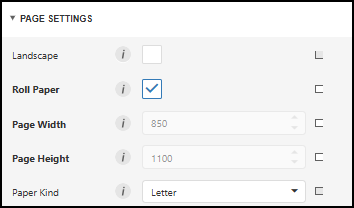
Expand Page Settings.
-
Mark the Roll Paper checkbox.
-
Save the report configuration.
-
Generate the Excel report again.
After enabling this option, the Excel export will produce the report content as a single continuous worksheet.