![OmniByte - PNG Black Logo Oct 2021 (1).png]](https://help.omnibyte.com/hs-fs/hubfs/OmniByte%20-%20PNG%20Black%20Logo%20Oct%202021%20(1).png?height=50&name=OmniByte%20-%20PNG%20Black%20Logo%20Oct%202021%20(1).png)
When printing an XLSX report, the report information may sometimes span multiple pages or sheets instead of printing as a single continuous page. This can make the printed report difficult to read or require unnecessary page breaks.
The Roll Paper option in the Report Designer can be used to configure the report so that all of the report information prints on one continuous page.
- Open the Report Designer.
- In the Properties panel, make sure Main Report is selected.

- Expand Page Settings to display the available page configuration options.
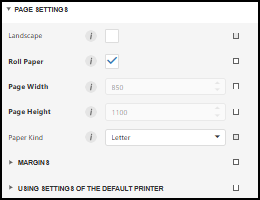
- Select the Roll Paper checkbox.
- Save your changes in the Report Designer.
- Open the Form Designer, and save the form to ensure the report configuration changes are retained.
After the Roll Paper option is enabled and the changes have been saved, print the XLSX report again. The report information will print on a single continuous page rather than being divided across multiple pages or sheets.
This setting is useful when the goal is to keep the report's information together as one continuous printed report and avoid page breaks caused by the standard page layout.