![OmniByte - PNG Black Logo Oct 2021 (1).png]](https://help.omnibyte.com/hs-fs/hubfs/OmniByte%20-%20PNG%20Black%20Logo%20Oct%202021%20(1).png?height=50&name=OmniByte%20-%20PNG%20Black%20Logo%20Oct%202021%20(1).png)
Previewing a section lets you see how it will appear and function on a form. This is especially useful for testing fields that are connected to a data set or are calculations.
To preview a section, complete the following:
- From the section designer's toolbar, click
 (Preview) to open the Preview Section window.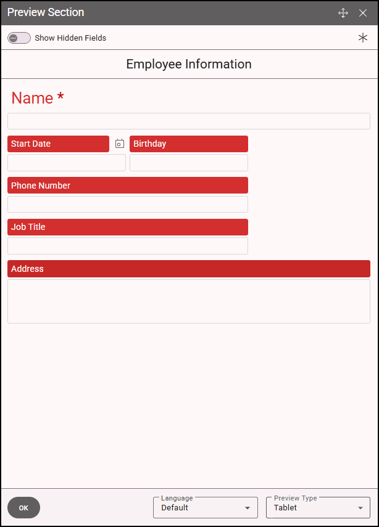
- If your section includes hidden fields, you can enable the Show Hidden Fields option to display them.
- From the Preview Type list, select Phone, Tablet or Desktop to view how it the section will appear on each of these devices. Keep in mind that phones span two columns, tablets span three columns and a desktop spans four columns in Preview mode. Additionally, the Preview Section window allows you to type or select values to test that all fields perform as intended.
Note: If your section uses data sets or form actions, live data may be triggered and updated during preview. In these cases, we recommend using the Preview window in a test environment. -
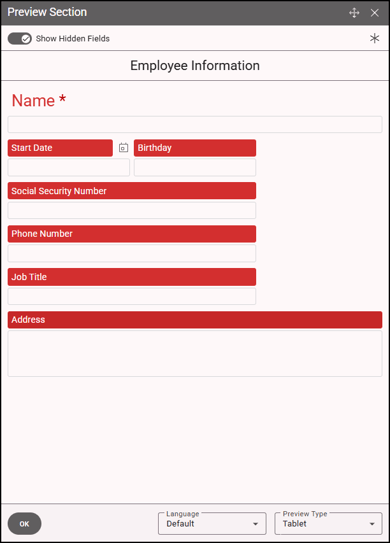
In the following illustration the Social Security Number field is a hidden field but displays in the Preview Section window because the Show Hidden Fields toggle is on.
-
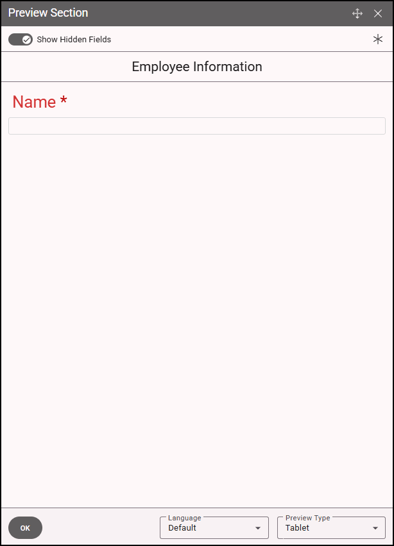
To preview the required fields in the section, click the asterisk button.
- Click OK to close the Preview Section window.