![OmniByte - PNG Black Logo Oct 2021 (1).png]](https://help.omnibyte.com/hs-fs/hubfs/OmniByte%20-%20PNG%20Black%20Logo%20Oct%202021%20(1).png?height=50&name=OmniByte%20-%20PNG%20Black%20Logo%20Oct%202021%20(1).png)
Email envelopes make it easy to bundle multiple forms into a single message. Think of an envelope as the digital equivalent of mailing a set of paper documents: you create a cover message, add the forms you want to send, and deliver everything together to the recipients you specify.
An envelope includes two main parts:
- A cover message: This is the message recipients see with the envelope, similar to a cover letter accompanying a set of documents.
- One or more forms: These are the forms recipients need to complete. By grouping them in the same envelope, you can send related forms as a single package rather than sending each form separately.
Once the recipients complete the forms, the completed forms are submitted together according to the envelope's configuration.
You cannot use envelopes with public forms.
Before you can send forms in an email envelope, you first need to set up the envelopes. Once your envelopes are configured, you can add the appropriate forms, create the cover message, and specify the recipients for each package.
Setting up envelopes in advance makes it easier to organize related forms and ensures that recipients receive everything they need in a single, streamlined message.
- From the Operations menu, select Email Envelopes. The Email Envelopes page opens.

- Click + Envelope. The Add Envelope tray opens.
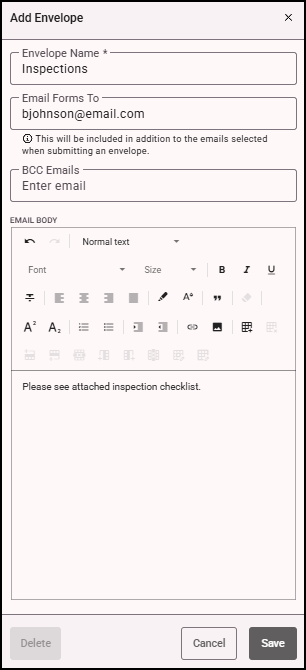
- Enter a name for the envelope. The name is used to assign forms to envelopes and on the app to begin working on a “set” of forms to send together.
-
Enter the email addresses of the recipients who should receive the envelope if it is sent to the same people each time. Press Enter after each email address to save it.
If the recipients vary each time the forms are completed and emailed, leave this field blank. You can enter the recipients’ email addresses later when completing the forms and envelope in the mobile app.
- Enter email body text to include on the email that contains the forms. (The email subject is entered on the app when the forms are completed.)
- Click Save. This envelope is now available to select for individual forms.