![OmniByte - PNG Black Logo Oct 2021 (1).png]](https://help.omnibyte.com/hs-fs/hubfs/OmniByte%20-%20PNG%20Black%20Logo%20Oct%202021%20(1).png?height=50&name=OmniByte%20-%20PNG%20Black%20Logo%20Oct%202021%20(1).png)
As your needs change you may need to edit the sections you've created, or may no longer use one so it can be deleted. After making your section changes, you can choose which existing forms to apply the changes to. For more information about reusable sections, see Using Sections.
- From the Reusable Components menu, select Sections. The Sections page opens.
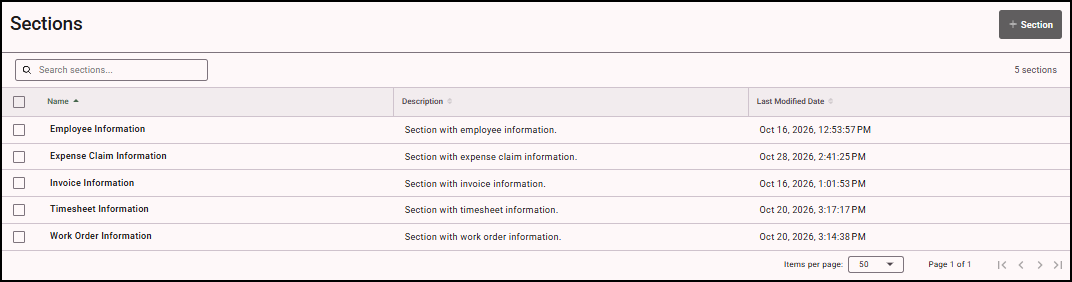
- Click the section you want to edit or delete. The Edit Section tray opens.
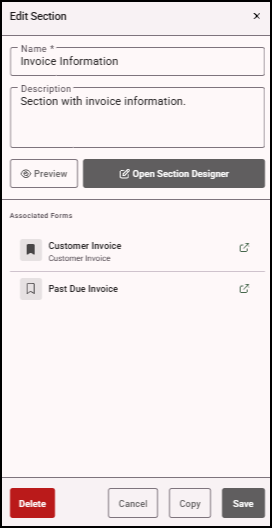
- Make any necessary changes to the section.
- Click Save.
- Click
 (Apply Changes) to open the Apply Changes window.
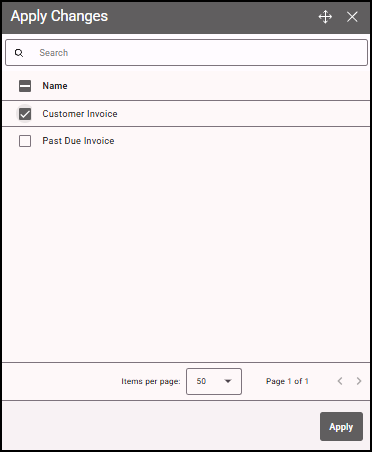
- Mark the forms that contain this section to which you want to apply the changes. The next time the app users sync their device, the updated section appears on the forms. If you don’t apply changes, those forms continue to use the section as it was prior to making these changes.
Note: Changes can be applied later. For example, if you want to wait to apply changes until all forms are submitted for the day.
- To delete a section, click Delete. Sections applied to a form cannot be deleted.