![OmniByte - PNG Black Logo Oct 2021 (1).png]](https://help.omnibyte.com/hs-fs/hubfs/OmniByte%20-%20PNG%20Black%20Logo%20Oct%202021%20(1).png?height=50&name=OmniByte%20-%20PNG%20Black%20Logo%20Oct%202021%20(1).png)
The Data Deletion page allows you to efficiently search for and delete multiple form submissions at once. This tool is useful for managing and cleaning up submission data based on specific criteria such as form, date range, or entered values.
When performing data deletion, removing a submission from a form that has an associated child form will sever the relationship between them. As a result, the parent form will no longer be visible anywhere that relationship is displayed, such as on the View/Edit Submissions page.
We recommend deleting child form submissions along with the parent when removing parent data.
- From the Submissions and Logs menu, select Data Deletion. The Data Deletion page opens. Select Delete Multiple Submissions.
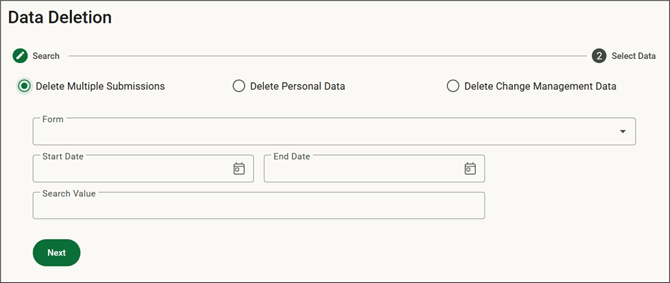
- Select the form for which you want to delete submissions. To narrow the search results, enter a start and end date for the form submissions.
- You can also enter a specific value from the form to search for matching submissions.
Note: You must select at least one form or enter a search value to proceed.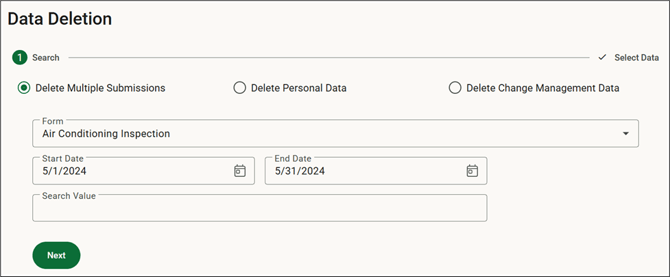
- Click Next. The forms meeting your criteria appear.
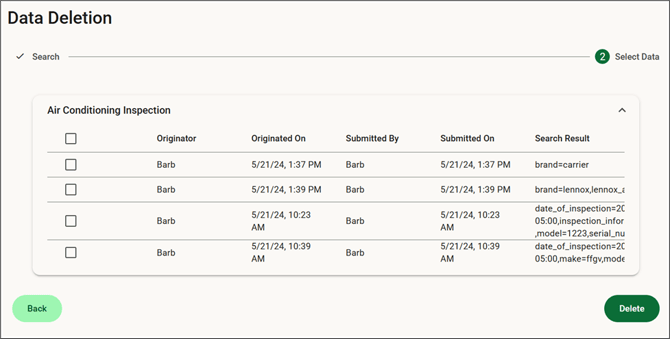
- Mark each submission you want to delete, then click Delete.
- The Confirm window opens.
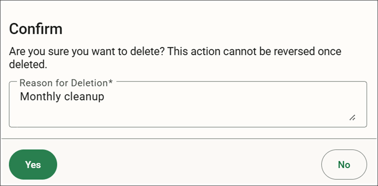
- Enter the reason for the deletion, then click Yes.