![OmniByte - PNG Black Logo Oct 2021 (1).png]](https://help.omnibyte.com/hs-fs/hubfs/OmniByte%20-%20PNG%20Black%20Logo%20Oct%202021%20(1).png?height=50&name=OmniByte%20-%20PNG%20Black%20Logo%20Oct%202021%20(1).png)
Conditional form actions allow you to run a form action based on the answer to an input on a form. For example, you have an air conditioning inspection form with different types of filters. When HEPA is selected as the type, a form action is run.
- Open the form for which you want to create a conditional form action.
- Choose
 (Connect) then select Form Actions.
 - This procedure assumes you already have the form action created. Click
 (Edit Condition) to open the Condition window.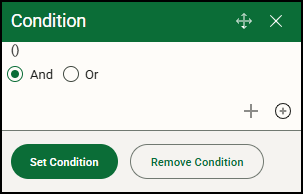
- Click the + (Add Rule) button to add a rule to the form action.
- Select the field on which to build the condition (in this example, Filter_Types). As each option is selected, the statement is formed describing the condition. In this example, Filter_Types, is equal to, Value, and HEPA were selected.
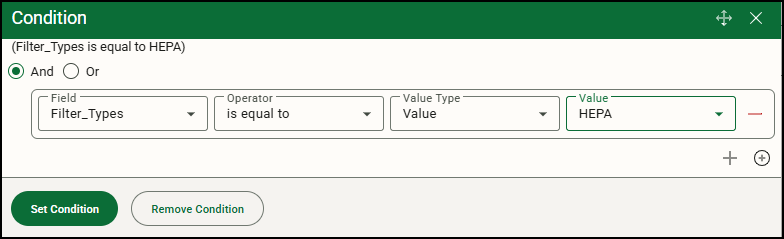
- Click Set Condition to save the condition. When HEPA is selected as the type, the form action will run.
- To delete the conditional form action, click Remove Condition.