![OmniByte - PNG Black Logo Oct 2021 (1).png]](https://help.omnibyte.com/hs-fs/hubfs/OmniByte%20-%20PNG%20Black%20Logo%20Oct%202021%20(1).png?height=50&name=OmniByte%20-%20PNG%20Black%20Logo%20Oct%202021%20(1).png)
A deep link is a URL that opens the FormsPro app, can open a specific form, and can pre-fill that form with values. Another application, such as a work-order or CRM system, uses it to send a user straight into the right form. For example, a technician in IFS Mobile Work Order (MWO) can tap a link that opens an inspection form with the work order and equipment number already filled in.
A deep link can also return the user to the calling application once the form is saved or submitted.
Deep links are available for standard and basic forms.
If you're not familiar with the steps in this process, please contact your IT department or support@omnibyte.com for assistance.
- Open the form for which you want to create a deep link and from the toolbar, click
 (Connect) and select Deep Links. The Deep Links page opens.

- Click + Deep Link, or click the pencil icon to edit an existing one. The Deep Links window opens.
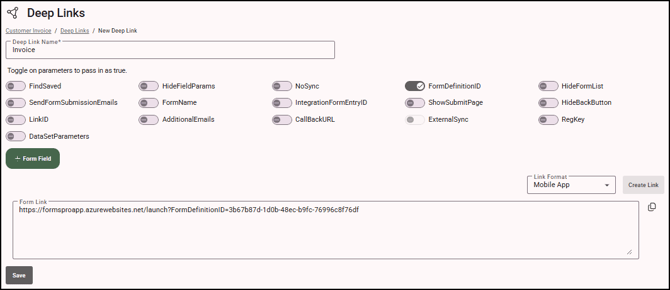
- In the Deep Link Name field, enter a name for the deep link. This name does not appear in the URL.
- Toggle on/off the parameters for the deep link you are building. A parameter is a piece of information that tells the app what data to display or how to behave then the deep link is opened. If you use a parameter that adds “<<addvaluehere>>” make sure to replace everything between << and >> with the correct value before using the link.
If you would like to open a specific tab in the app, you can add a parameter to the deep link URL. Values for the tab parameter include:
assigned > Assigned workflow actions tab
dispatch > Dispatched Forms tab
envelopes > Unsubmitted envelopes tab
new > Start a new form tab
saved > Saved/received forms tabFor example, the following link could open the Saved/received forms tab in the app without syncing:
https://formsproapp.net/launch?Tab=saved&NoSync=true
If you enter an invalid or unrecognized value in for the tab parameter, the app will display a blank page.
In most cases, you’ll want to allow the app to sync when using a deep link to ensure you’re viewing the most up-to-date information. Parameter names are case-sensitive and must be spelled exactly as shown. The builder sets on/off parameters to true; to pass false, edit the link by hand.
Each parameter is joined to the next with &. For readability, the examples show values unencoded; the builder encodes values such as email addresses, form names and URLs for you. The IDs shown are examples only.
Pre-Filled Field ValuesFindSaved Opens a saved, unsubmitted form on the device whose IntegrationFormEntryID matches the link. If no saved form is found and FormDefinitionID is on, a new form opens instead.
For example: FindSaved=true
HideFieldParams Hides the bar at the top of the form that shows the values passed in. Useful for sensitive data.
For example: HideFieldParams=true
NoSync Skips the sync when the app opens from the link. We recommend leaving sync on.
For example: NoSync=true
FormDefinitionID Opens a new copy of this form, using its unique ID. Takes priority over FormName.
For example: FormDefinitionID=5B1F0C2E-8A4D-4E39-9A6B-2C7D1E0F3A11
HideFormList Hides the form list on the home page.
For example: HideFormList=true
SendFormSubmissionEmails Submission emails are sent by default. Set the value to false to stop them for this link.
For example: SendFormSubmissionEmails=false
FormName Opens a new copy of the form whose name matches. If no form matches, the app stays on the home page.
For example: FormName=Site Inspection
IntegrationFormEntryID Locates and references a specific existing form submission or saved draft. It is typically passed as a parameter in a deep link to retrieve a form that has already been created but not yet submitted.
The IntegrationFormEntryID points to a specific instance of that form — usually tied to an external system record such as a job, task, inspection, work order, or assessment.
For example: IntegrationFormEntryID=F208FAA1-83AF-49D5-9D7D-4A1746BB6127
ShowSubmitPage Shows a Form Submitted page after submit instead of the form list. Ignored when CallBackURL is on.
For example: ShowSubmitPage=true
HideBackButton Hides the back button so the user cannot return to the home page.
For example: HideBackButton=true
LinkID A shared ID that groups several forms under one record, such as a service call. Pass a GUID.
For example: LinkID=7E986E92-F695-4CBD-B468-57A69F90848F
AdditionalEmails Adds the email addresses you enter, separated by commas, to the form's submission emails.
For example: AdditionalEmails=manager@example.com,office@example.com
CallBackURL Returns the user to this URL after the form is saved or submitted. The app adds a Status value (Submitted, Saved or NotSubmitted) and the IntegrationFormEntryID, if one was passed. Use the Insert Merge Field icon to send field values back, for example ~Customer Name~.
For example: CallBackURL=myapp://done?customer=~Customer Name~
ExternalSync Syncs the app, then returns to the CallBackURL. Available only when CallBackURL is on.
For example: ExternalSync=true
RegKey Passes a registration key. If it differs from the device's current key, the app re-registers.
For example: RegKey=YOUR-REGISTRATION-KEY
Use these formats for field values, especially if the calling application builds the link itself.
Text, Long Text, Number
As entered
Date
yyyy-MM-dd, for example 2026-03-04
Date/Time
ISO 8601 with offset, for example 2026-03-04T14:30:00-05:00
Time
HH:mm (24-hour)
Toggle
The toggle's On or Off value
Radio, Select, Lookup, Segmented Button
An option value
Checkbox and multi-value fields
Option values separated by commas, for example Red,Blue
- Toggle DataSetParameters on to use a data set on the deep link. Data set parameters are used in a deep link to filter the data that is retrieved from the server, ensuring that only the relevant information is returned. These parameters are provided when the deep link is executed. Keep in mind the data set parameter is passed in as a string, even if it is a number. If the value needs to be treated as a number, you’ll need to convert it to an integer. For details about using data set parameters, see Using Data Set Parameters for Deep Links.
-
Click + Form Field to add any fields you want to include in the deep link along with the value you want them to contain. After generating your link, replace the AddDValueHere placeholder with the appropriate value.
Toggle Encode on if you want certain characters in the URL to be converted into URL-safe formats. Encoding prevents these characters from breaking the link or causing errors. For example, ampersands and question marks have special meanings in URLs. When included as a deep link they could be misinterpreted by browsers. - From the Link Format list, select the format you want to use for the deep link: Mobile App, Windows Desktop, or Browser.
- Click Create Link to create the deep link. Once the link is created, you can edit any of the information in the link as needed. The
 (Copy) button can be used to copy the link into the integrating product as needed. We recommend pasting the link in your preferred format and testing it to confirm the deep link works correctly.
- Click Save. Saving the deep link allows you to make changes later if the form changes or your data in the integrating product changes.
Troubleshooting
Problem What to check A field shows <<AddValueHere>>
The calling application did not replace the placeholder.
A value is cut off or wrong
Turn on Encode for that field and click Create Link again.
The form does not open
Check that the form is published and available on the device, and that FormName matches the form name.
A date fills in wrong
Use the yyyy-MM-dd format.
The link does not match your settings
Click Create Link, then Save.