![OmniByte - PNG Black Logo Oct 2021 (1).png]](https://help.omnibyte.com/hs-fs/hubfs/OmniByte%20-%20PNG%20Black%20Logo%20Oct%202021%20(1).png?height=50&name=OmniByte%20-%20PNG%20Black%20Logo%20Oct%202021%20(1).png)
You can create a data set that retrieves information about the currently logged-in user using a SQL query. Once created, the data set can be applied to a form to automatically populate user-specific information.
- From the Reusable Components menu, select Data Sets. Click + New Data Set. The Data Set Designer opens.
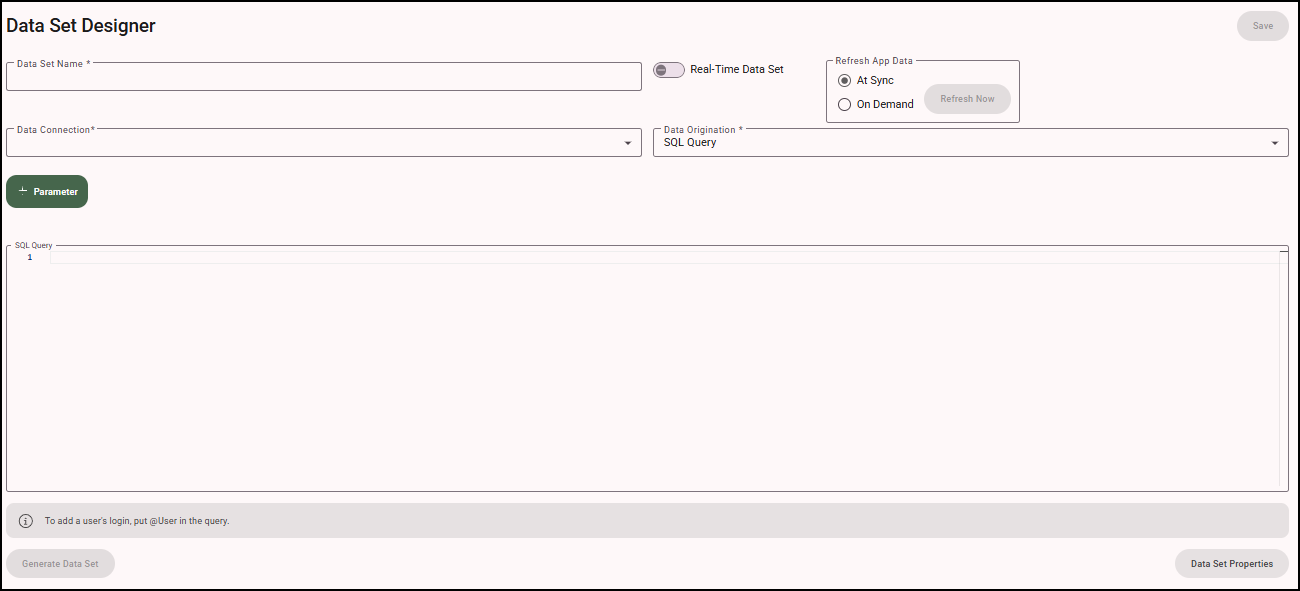
- In the Data Set Name field, enter a descriptive name for the data set. In this example, we'll name the data set @User.
- From the Data Connection field, select the data connection from which the data is to be retrieved. In this example, we are using a SQL Server connection type.
- From the Data Origination field, select SQL Query because that is where the data comes from.
- Enter the SQL query to retrieve the data fields. Using this example, we'll use SELECT @User.
- Click Generate Data Fields to run the query and display a subset of the data.
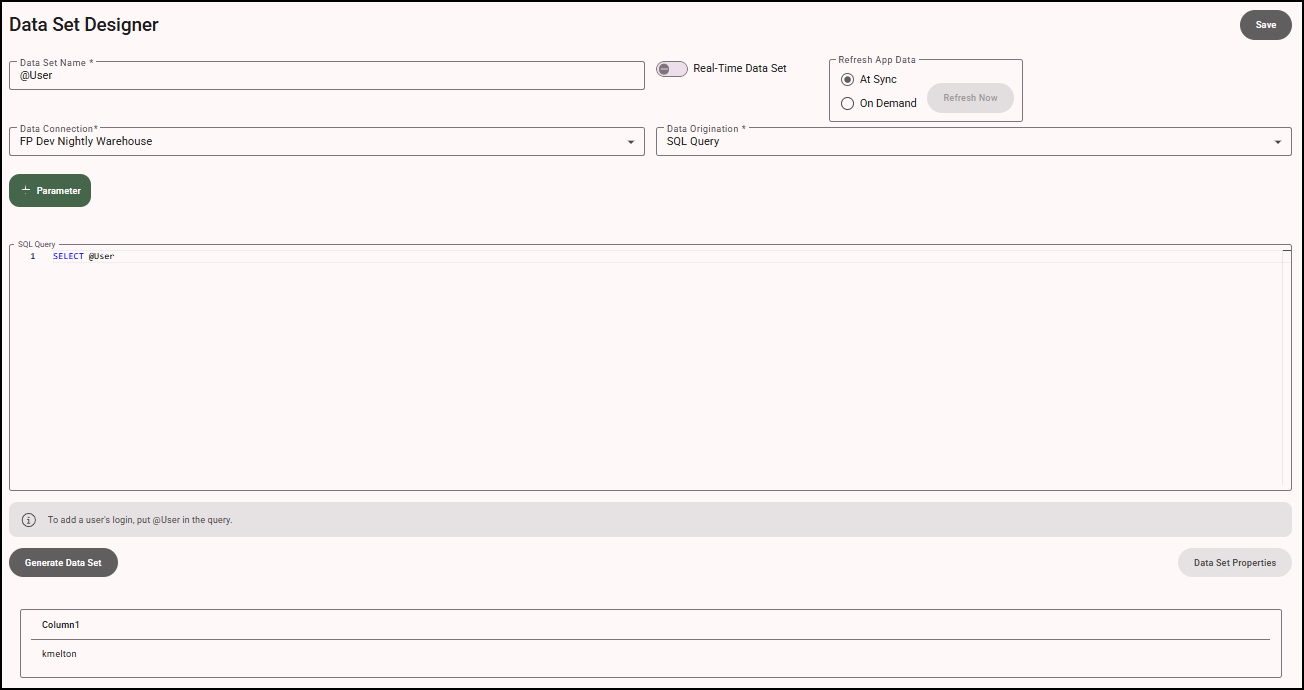
- Click Save to save the data set.
- The data set can now be applied to a form. See Adding a Data Set to an Input and Adding a Data Set to a Dynamic Table for more information.
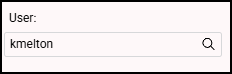
- Once the data set has been applied, preview the form to confirm that the logged-in user's information is automatically populated as expected. This allows forms to display personalized data without requiring users to enter information manually: