![OmniByte - PNG Black Logo Oct 2021 (1).png]](https://help.omnibyte.com/hs-fs/hubfs/OmniByte%20-%20PNG%20Black%20Logo%20Oct%202021%20(1).png?height=50&name=OmniByte%20-%20PNG%20Black%20Logo%20Oct%202021%20(1).png)
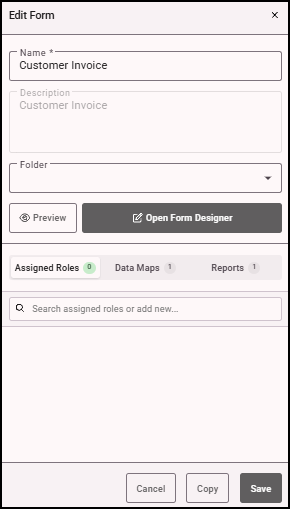
Copying a form lets you use an existing one as a template, which is helpful if you have similar forms with just a few differences. A form can be copied from the Edit Form tray or from the Form and Report Designer menu.
- From the Edit Form tray, click Copy.
- The copied form's name appears in the Forms page.
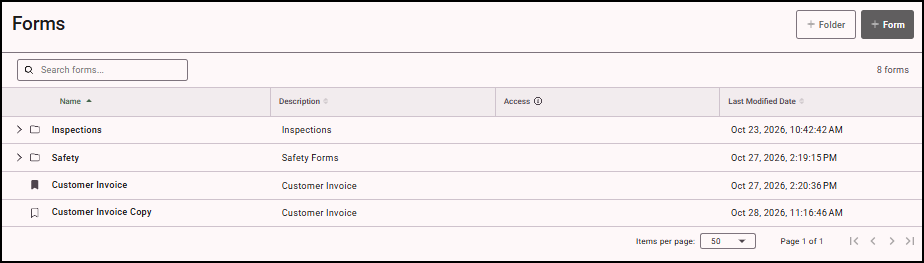
- Or from the Form and Report Designer menu and click
 (Copy) on the toolbar. The Copy Form window opens.
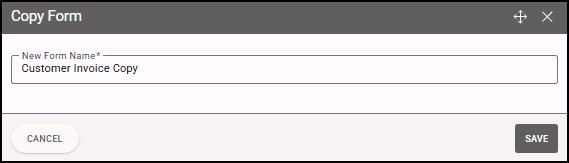
- The copied form’s name appears in the New Form Name field with "Copy" added at the end. You can rename it if you want.
- Click Save to save the copied form. It will appear in the same folder as the original. If the original wasn’t saved in a folder, you’ll find the copied form under the Forms menu. Roles, emails, workflows, and reports are all copied along with the form.