![OmniByte - PNG Black Logo Oct 2021 (1).png]](https://help.omnibyte.com/hs-fs/hubfs/OmniByte%20-%20PNG%20Black%20Logo%20Oct%202021%20(1).png?height=50&name=OmniByte%20-%20PNG%20Black%20Logo%20Oct%202021%20(1).png)
Single sign-on (SSO) is an authentication scheme that allows a user to use one set of login credentials to access multiple applications and services. This eliminates the need to remember passwords for each application and service.
After configuring Entra ID for single sign-on in Azure, use the Single Sign-On tab to enter the information that allows a user to connect to their Azure Active Directory (Azure AD) for SSO. Once this is set up, you can sync users from the Users page.
- From the Configuration menu, click Security Settings to open the Security page. Click the Single Sign-On tab.
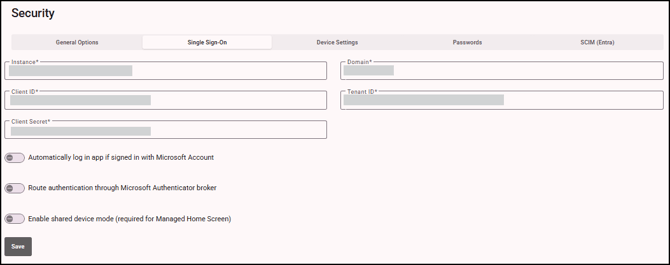
- Verify the configuration information:
Instance: Indicates the Microsoft Entra ID instance you are authenticating against, such as https://login.microsoftonline.com.
Domain: Authenticates the credentials and validates the user.
Client ID: Issued to the client during the application registration process.
Tenant ID: Digital identity provided by Entra ID.
Client Secret: Issued to the client during the application registration process. The client secret displays encrypted. - Toggle Automatically log in app if signed in with Microsoft Account on if you are already signed in with your Microsoft account to automatically log in.
- Toggle Route authentication through Microsoft Authenticator broker on to allow authenticator to manage our access tokens.
- Toggle Enable shared device mode (required for Managed Home Screen) on to allow once a person logs off the device all information about that user will be deleted.
- Click Save to save your changes.