![OmniByte - PNG Black Logo Oct 2021 (1).png]](https://help.omnibyte.com/hs-fs/hubfs/OmniByte%20-%20PNG%20Black%20Logo%20Oct%202021%20(1).png?height=50&name=OmniByte%20-%20PNG%20Black%20Logo%20Oct%202021%20(1).png)
The API Configuration page allows you to securely access data from your submitted forms through RESTful web services, a widely used standard for integrating applications and sharing data between systems. RESTful APIs are designed to be fast, reliable, scalable, and easy to connect with third-party software, making it simple to automate workflows and exchange information across platforms.
To protect your data and ensure that only authorized systems can access it, our API uses OAuth 2.0, an industry-standard framework for secure authentication and authorization. Specifically, it supports the Client Credentials Flow, which enables trusted applications and services to authenticate securely without requiring user interaction. This approach helps safeguard sensitive information while allowing approved systems to retrieve form data programmatically.
For a detailed explanation of how the Client Credentials Flow works, see https://auth0.com/docs/api-auth/grant/client-credentials.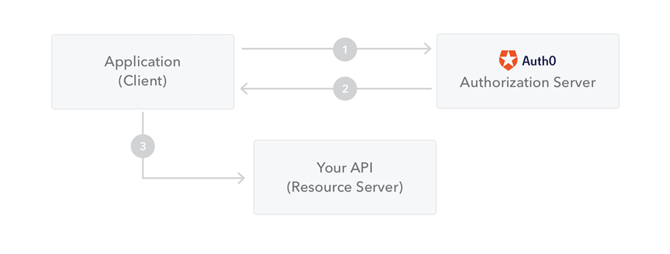
Note: This article is intended to provide a high-level overview of the API configuration process and related security concepts. Setting up API integrations may require technical knowledge of authentication, web services, and software development practices. If you need assistance configuring your connection, we recommend consulting your IT department, system administrator, or a developer with experience in API integrations and OAuth 2.0 authentication.
- From the Configuration menu, click API to open the API Configuration page.
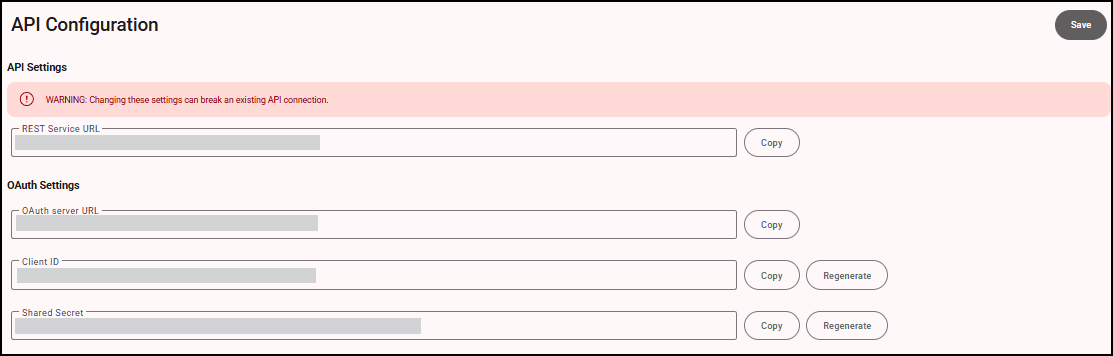
- Enter a REST Service URL which is the endpoint used to retrieve forms data. Click Copy to copy the URL to the clipboard for pasting into another source.
- Enter an OAuth Server URL which is the URL used to retrieve security tokens for API calls. Click Copy to copy the URL to the clipboard for pasting into another source.
- Enter a client ID and the shared secret which are used to authorize calls to the API. Click Copy to copy the client ID or shared secret to the clipboard for pasting into another source.
- Click Regenerate when you get a new client ID and/or shared secret. This removes access to old connections and updates to new.
- Click Save to save the configuration information.