![OmniByte - PNG Black Logo Oct 2021 (1).png]](https://help.omnibyte.com/hs-fs/hubfs/OmniByte%20-%20PNG%20Black%20Logo%20Oct%202021%20(1).png?height=50&name=OmniByte%20-%20PNG%20Black%20Logo%20Oct%202021%20(1).png)
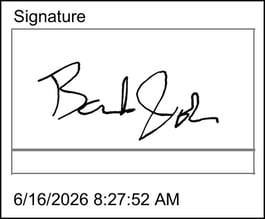
When a form is signed, the system automatically records the date and time the signature was applied. This information is stored with the form submission and can be added to reports so that users can easily see when the form was signed.
Follow the steps below to add the Signature (Signed On) field to a report.
- Open the Report Designer for the form where you want to display the signature date and time.
- Click
 (Field List) from the right-hand side of the Report Designer.
 - Expand the report's field list. In this example, AccidentReport, then expand Form Answers to view the available fields.
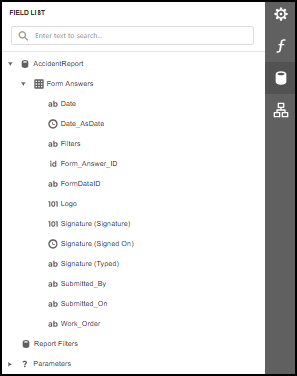
- Drag and drop the Signature (Signed On) field onto the report to the applicable location.
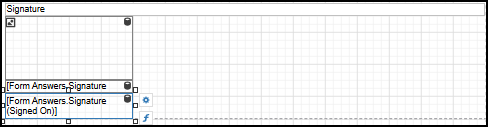
- Save your report changes.
- Close the Report Designer.
- Save the form.
- After the form is signed and submitted, the report will display the date and time the signature was applied. This allows you to quickly verify when the form was signed without needing to review the original submission: