![OmniByte - PNG Black Logo Oct 2021 (1).png]](https://help.omnibyte.com/hs-fs/hubfs/OmniByte%20-%20PNG%20Black%20Logo%20Oct%202021%20(1).png?height=50&name=OmniByte%20-%20PNG%20Black%20Logo%20Oct%202021%20(1).png)
User-defined formats can be added to a Text input on a form. For more information about creating user-defined formats, see Using the User-Defined Format Page.
- From the Form and Report Designer menu, select the form to which you want to add the user-defined format.
- Click the Text input to add it to the form.
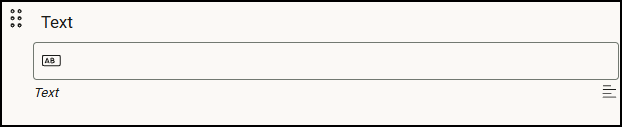
- Click it to view the Text input slider.
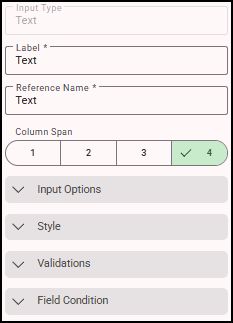
- In the Label field, enter a label for the text field.
- Select the column span size for the text field.
- Expand Input Options. See Using Input Options for more information.
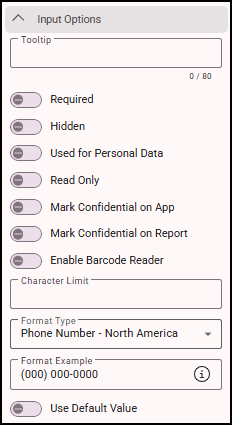
- In the Character Limit field, enter the number of characters for text fields.
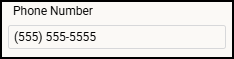
- If using a format for this text field, select the format you want to use. For example, if using a North American phone number format, it would look like the following in the app:
- Save your entries. You can now enter information for this field in the app.