![OmniByte - PNG Black Logo Oct 2021 (1).png]](https://help.omnibyte.com/hs-fs/hubfs/OmniByte%20-%20PNG%20Black%20Logo%20Oct%202021%20(1).png?height=50&name=OmniByte%20-%20PNG%20Black%20Logo%20Oct%202021%20(1).png)
Use the Paragraph element to add long-form text to a form. This is useful for including instructional content, disclaimers, or any other informational text you want displayed to users. You can also include an image within a paragraph; however, the image cannot be resized by selecting it directly. To change the image size, click the image icon and adjust the dimensions in the Update Image window.
Paragraphs are added to reports as Rich Text Field controls because they can contain both text and images. As a result, the paragraph content is rendered as encoded rich text data, which makes it difficult to directly edit or reformat within the report itself.
Because of this, we recommend not to place paragraph controls directly into reports. Instead, manually recreate the content in the report using individual controls that are easier to manage and format.
A common best practice is to:
- Add one or more labels to the report for text content.
- Copy the applicable paragraph text into those label controls.
- Add a picture box for any images used in the paragraph.
- Configure image sizing and display settings (such as Zoom or Fill) directly on the picture box controls.
Using separate controls provides greater flexibility and control over formatting, including fonts, styling, image sizing, and layout behavior within the report.
- From the Formatting menu in the Form Designer, click Paragraph.
- A paragraph is added to the form.

- Click on it to view the Paragraph input slider.
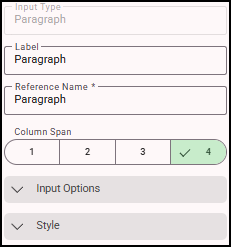
- In the Label field, enter a label for the paragraph. This label is used to “anchor” the expand/collapse button. The collapse button doesn't display for the paragraph when the Hide Collapse option is marked.
- Select the column span size for the paragraph.
- Expand Input Options.
- Toggle on Hide Label to hide the paragraph's label on a form. Toggle on Hide Collapse if you want to prevent the paragraph from being collapsable.
- Click
 (Edit Paragraph) to open the Paragraph window. In the text box, enter the paragraph text and apply any applicable formatting using the tools above the text box.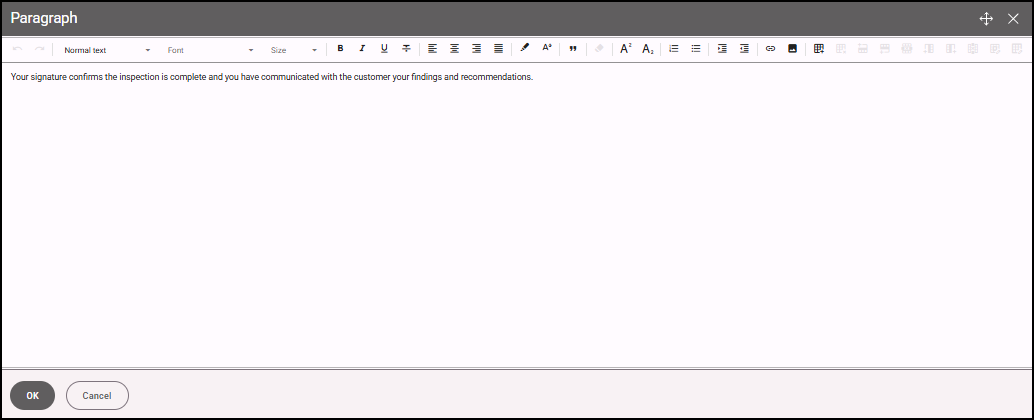
- Expand Style to specify the style settings for the paragraph. See Applying Styles to an Input for more information.
- Click OK to close the Paragraph window. Save your entries.