![OmniByte - PNG Black Logo Oct 2021 (1).png]](https://help.omnibyte.com/hs-fs/hubfs/OmniByte%20-%20PNG%20Black%20Logo%20Oct%202021%20(1).png?height=50&name=OmniByte%20-%20PNG%20Black%20Logo%20Oct%202021%20(1).png)
The Forms page displays a list of all folders created in the Admin site. You can organize folders into multiple levels to create a hierarchy that makes it easier to structure and manage your forms.
- From the Form and Report Designer menu, select Forms. The Forms page opens.
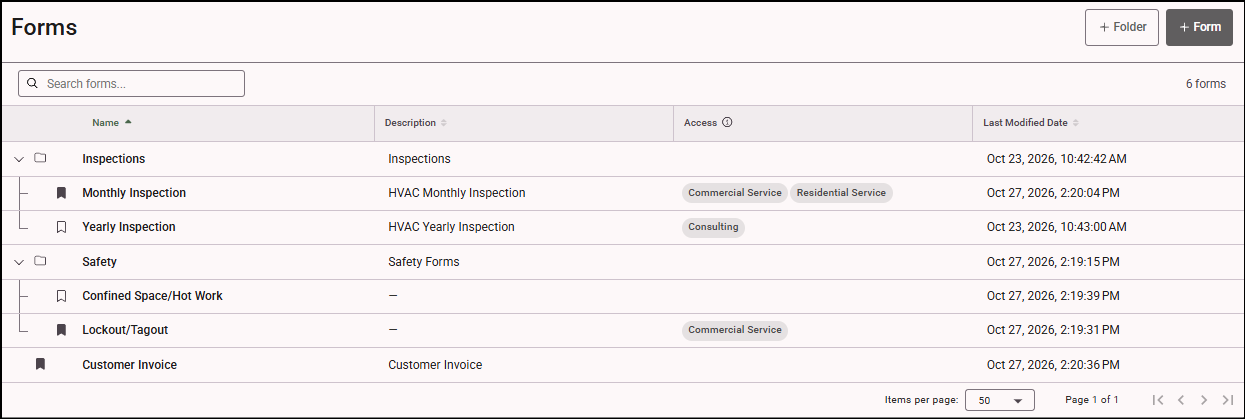
- Click the + Folder button to open the Add Folder tray.
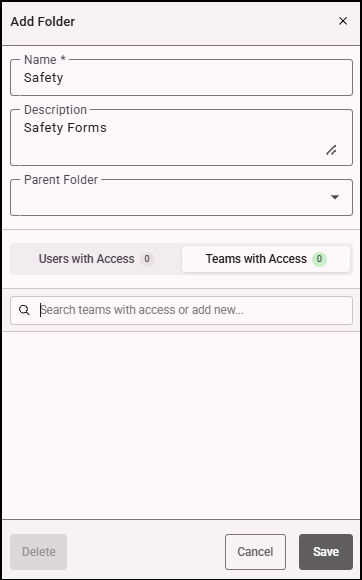
- Enter a name and description for the folder.
- If you are creating a subfolder, select the parent folder to which the subfolder belongs.
- If you want to limit who has access to the folder, select the users and/or teams for whom you want to have access to the folder and/or subfolder. If you do not specify a user or team all users will have access to the folder. The permissions set up for the user determines where they can access the forms from. For example, a human resources user could see employee benefit form data from the HR folder on the View/Edit Submissions page but may not be allowed to create a new form.
Allowing different users to access the forms they need is done in folders. Forms that are not in a folder are available to all users. - Click Save to save the folder.