![OmniByte - PNG Black Logo Oct 2021 (1).png]](https://help.omnibyte.com/hs-fs/hubfs/OmniByte%20-%20PNG%20Black%20Logo%20Oct%202021%20(1).png?height=50&name=OmniByte%20-%20PNG%20Black%20Logo%20Oct%202021%20(1).png)
Dynamic tables are tables that a tech can add rows to as they enter information on a form. A dynamic table (sub-table) within a dynamic table provides flexibility when designing and using forms. To add a dynamic table within a dynamic table, complete the following:
- From the Actions/Container menu in the Form Designer, click the Dynamic Table input.
- The Dynamic Table input is added to the form.
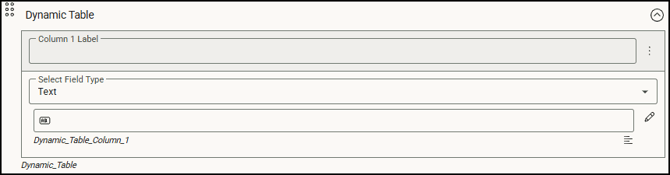
- Click on the Dynamic Table input and expand Input Options. Enter the applicable information for the dynamic table you are adding to your form.
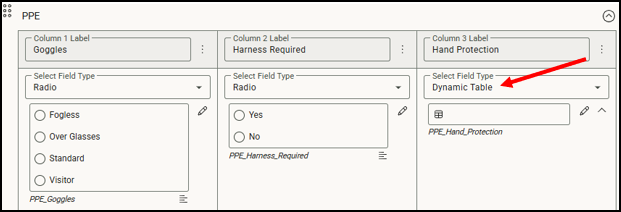
- To add a dynamic table (sub-table) to the dynamic table, select Dynamic Table as the field type.
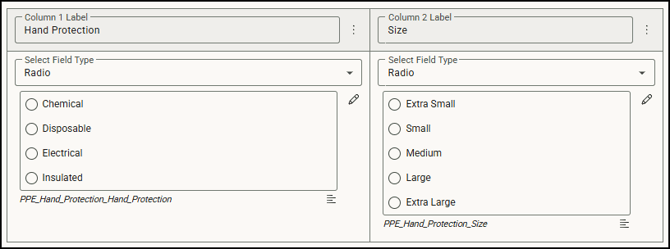
- The sub-table will appear under the primary dynamic table. Click on the sub-table, then expand Input Options to define columns for this sub-table.
- Save the form.
- Click
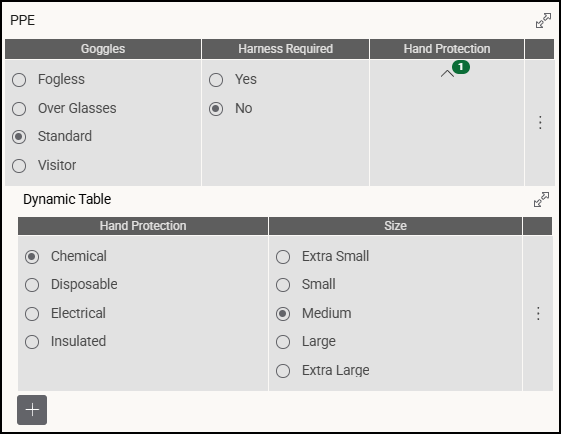
 (Preview) to view how the form will look in the app. When a tech is completing the form, the dynamic table (sub-table) in the dynamic table appears under the primary dynamic table: